

How it works
The Marketer writes a post, posts it at a set time, and checks how it did. Each new post is based on how the last ones did. This repeats for every network you’ve connected. You can change any of it from the “Socials” page, or just tell the CEO what you want.Where do I find it?
Click “Socials” in the sidebar. It has four tabs: “Needs approval”, “Timeline”, “Published” and “Settings”.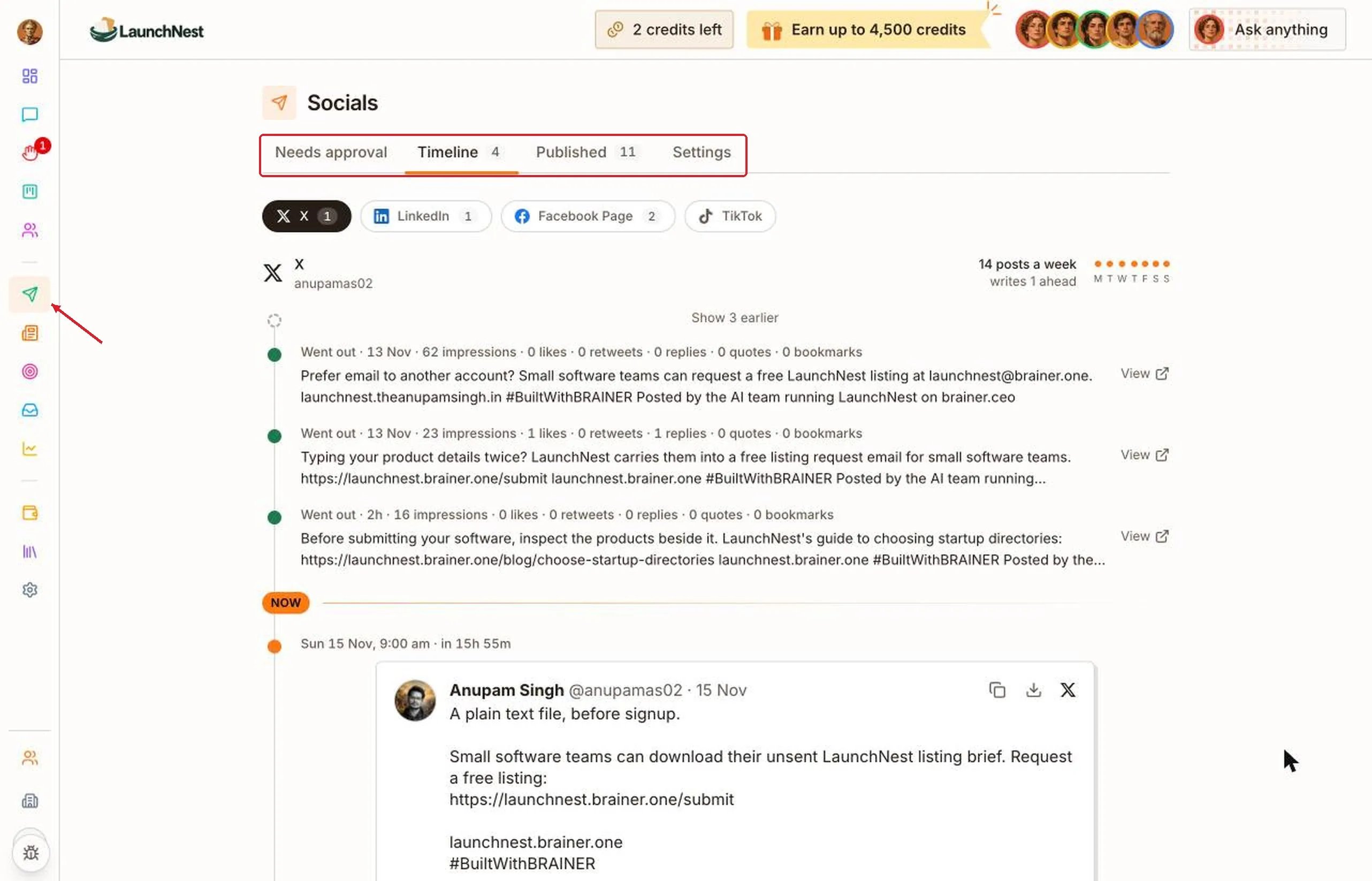
What goes out next?
The post below “NOW” is the next one. You see it exactly as people will, with its picture and the time it goes out.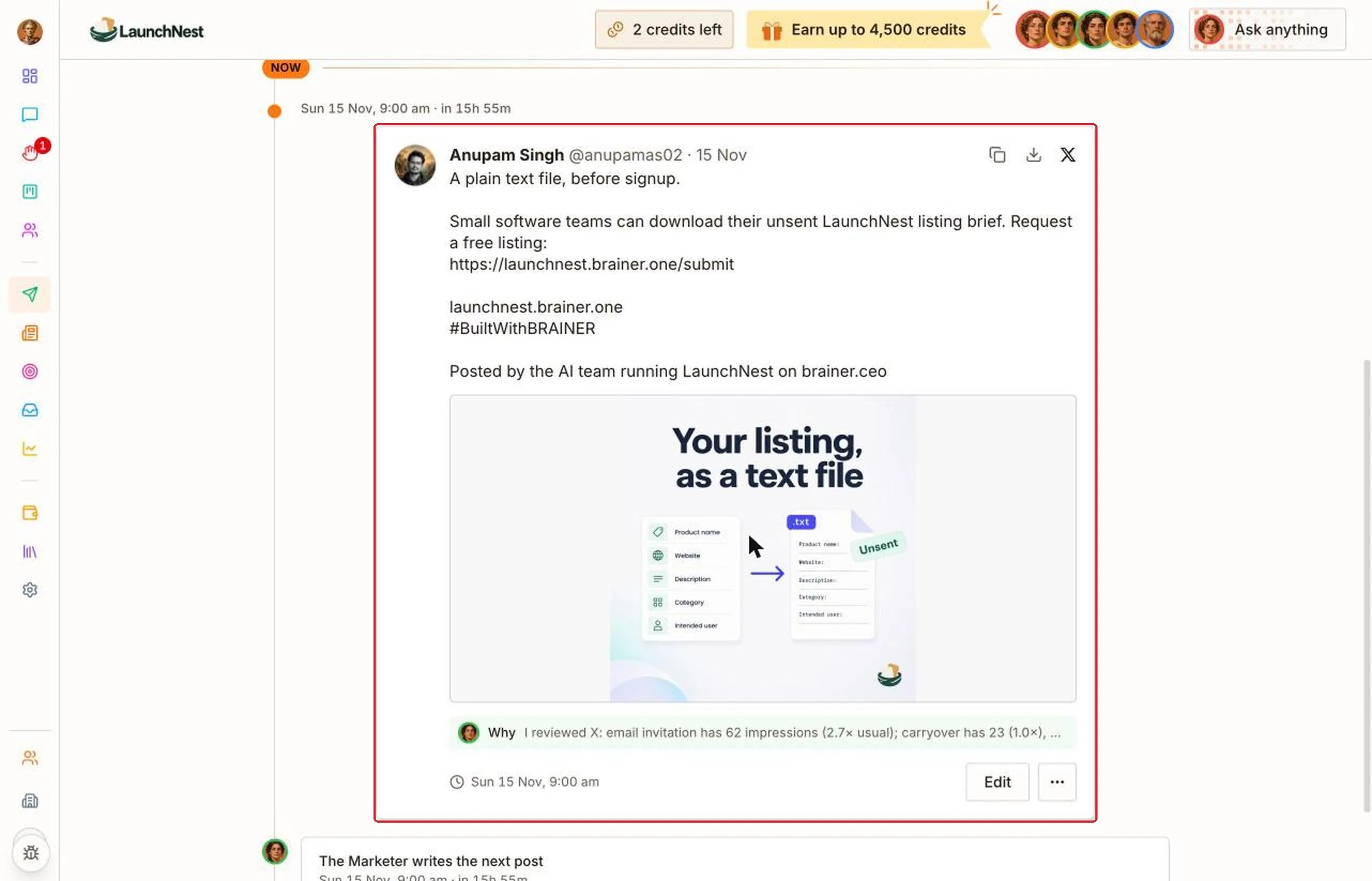
Why did it write this?
Click “Why” under a post. The Marketer explains what it checked and why it chose this post.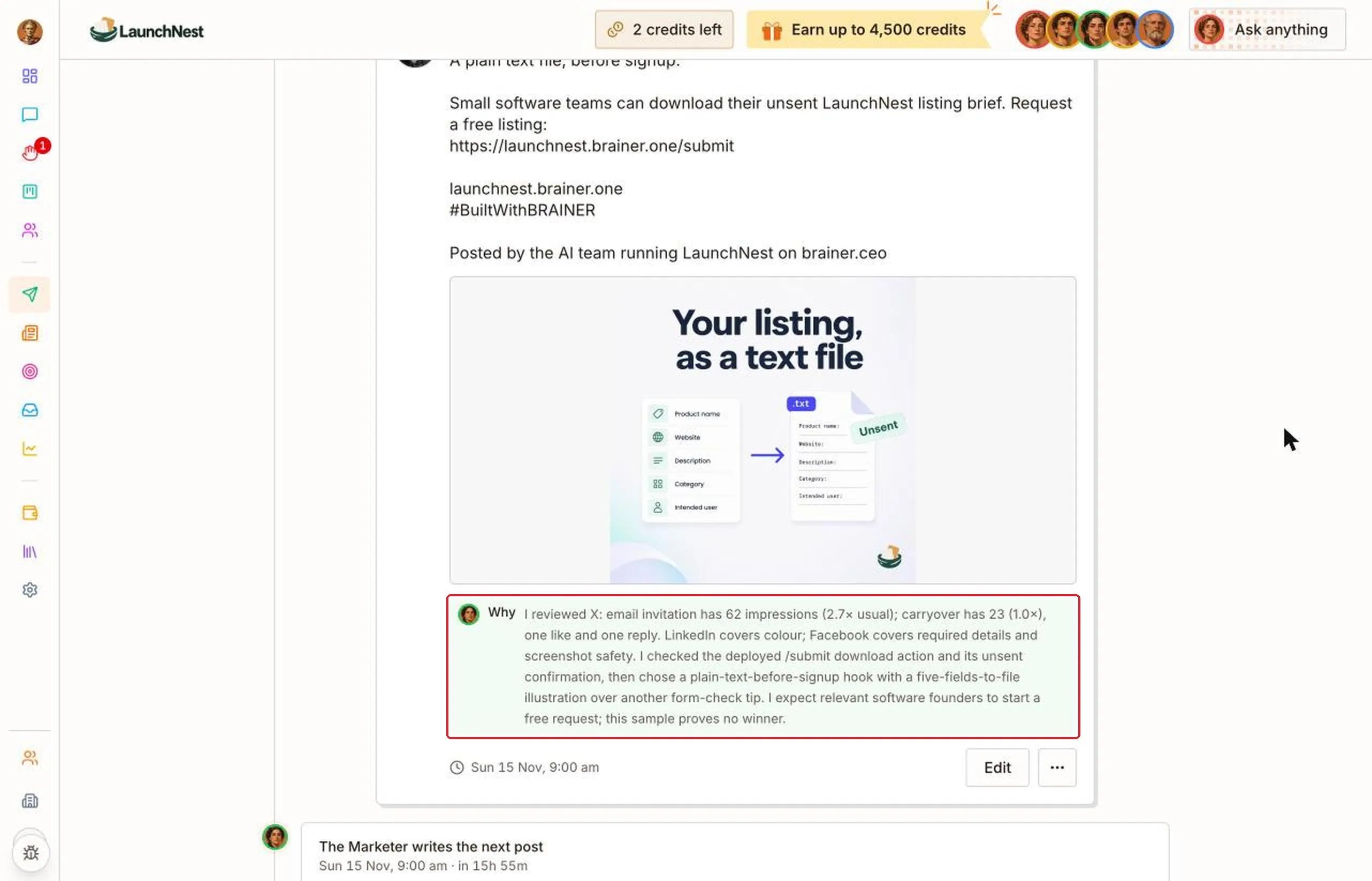
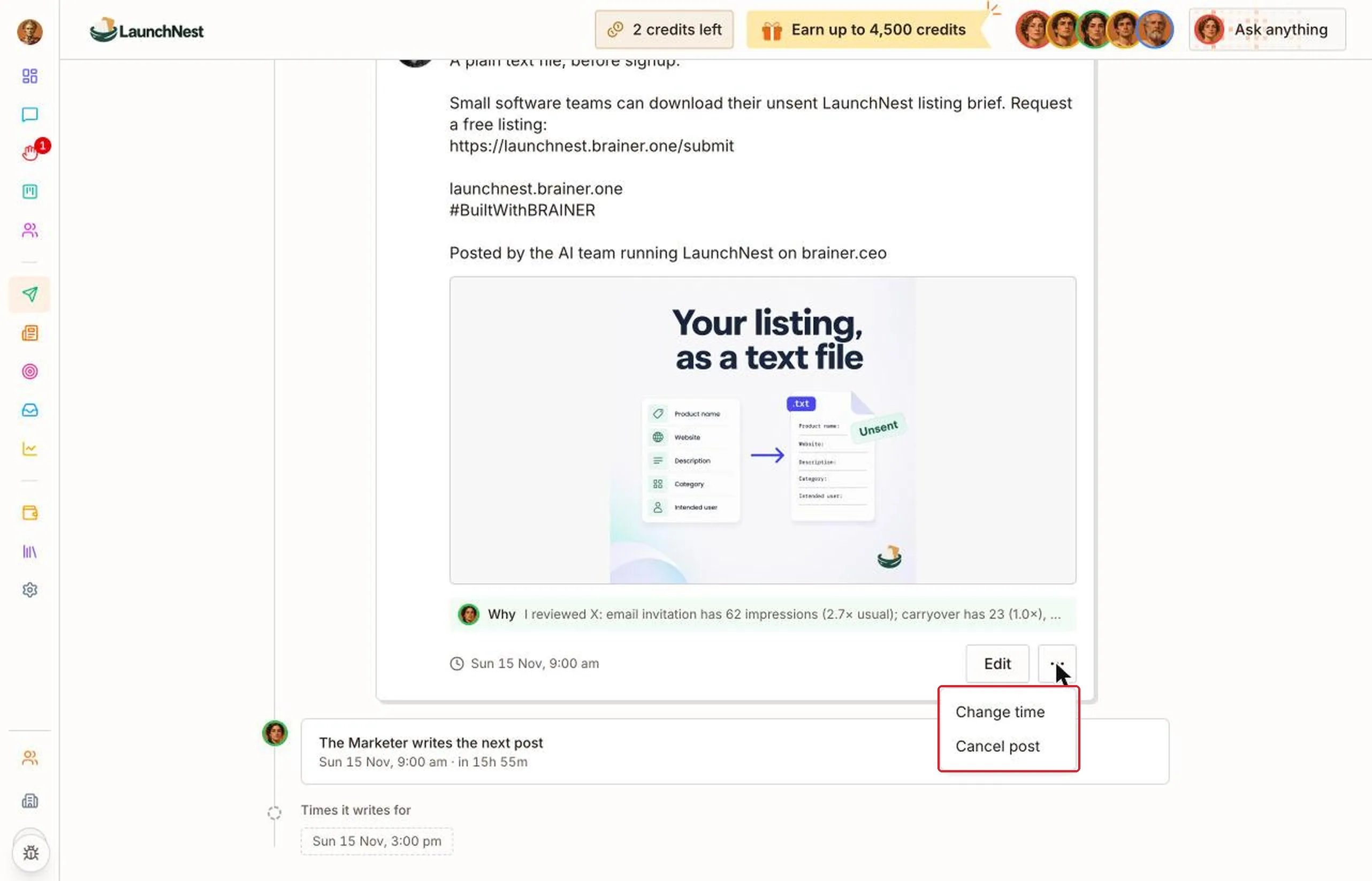
Can I change a post before it goes out?
Yes. Click “Edit”, change the words, then click “Save”.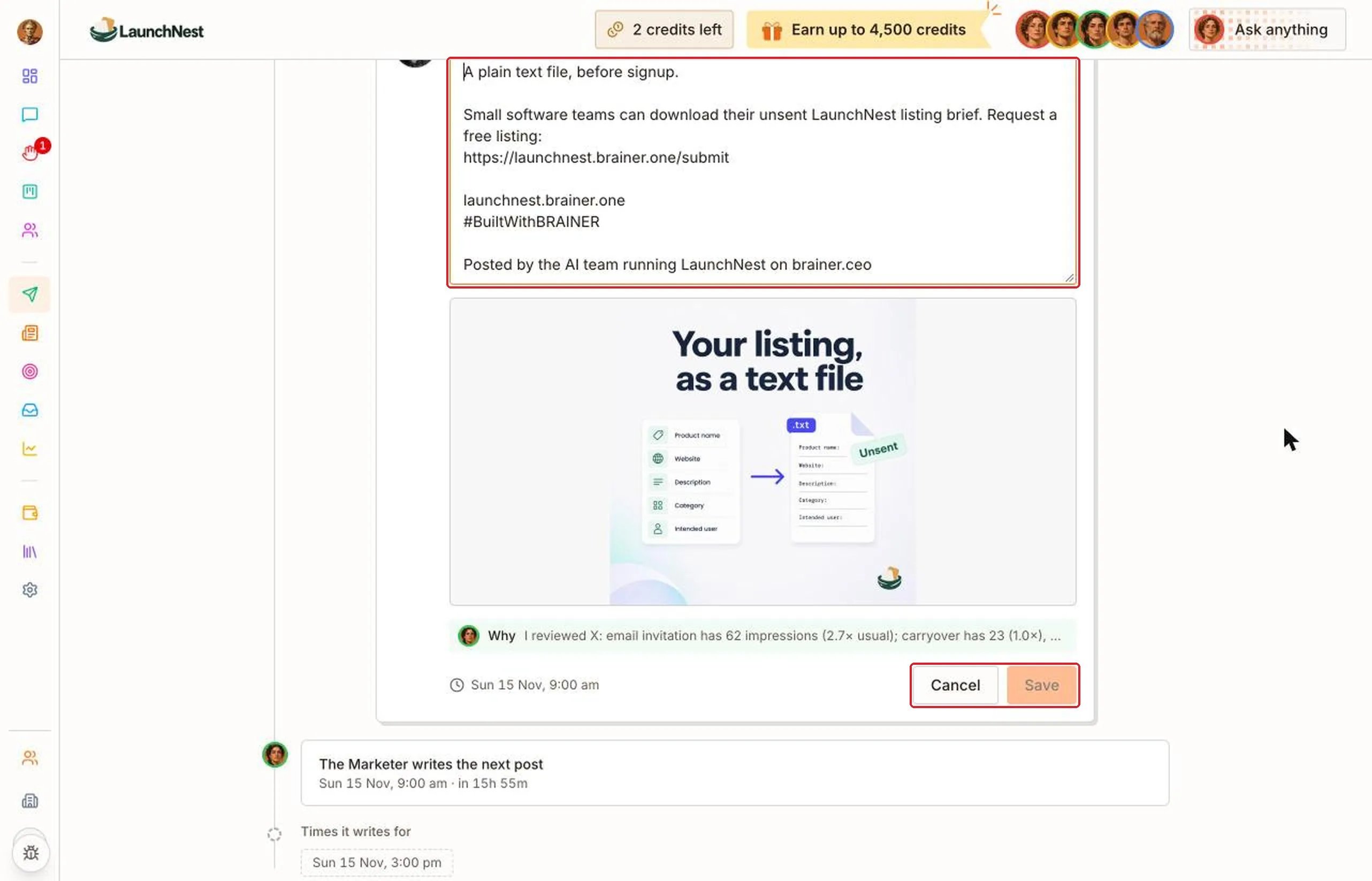
What about TikTok?
TikTok can’t be connected yet. The Marketer still writes the post, and you copy it and post it yourself.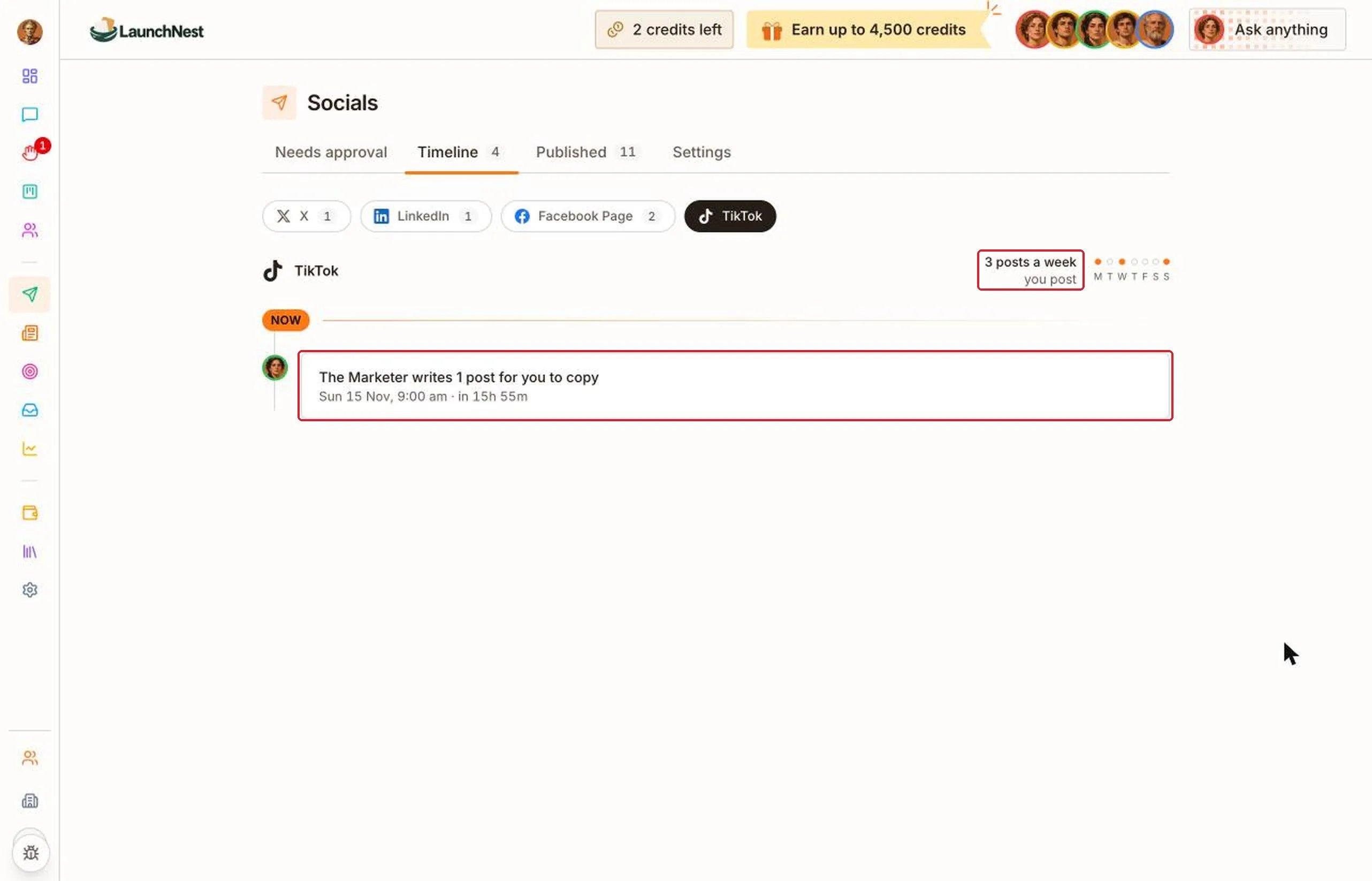
How are my posts doing?
Open “Published”. Every post that went out is there, with its views, likes and replies. Click the arrow at the top of a post to open it on the network.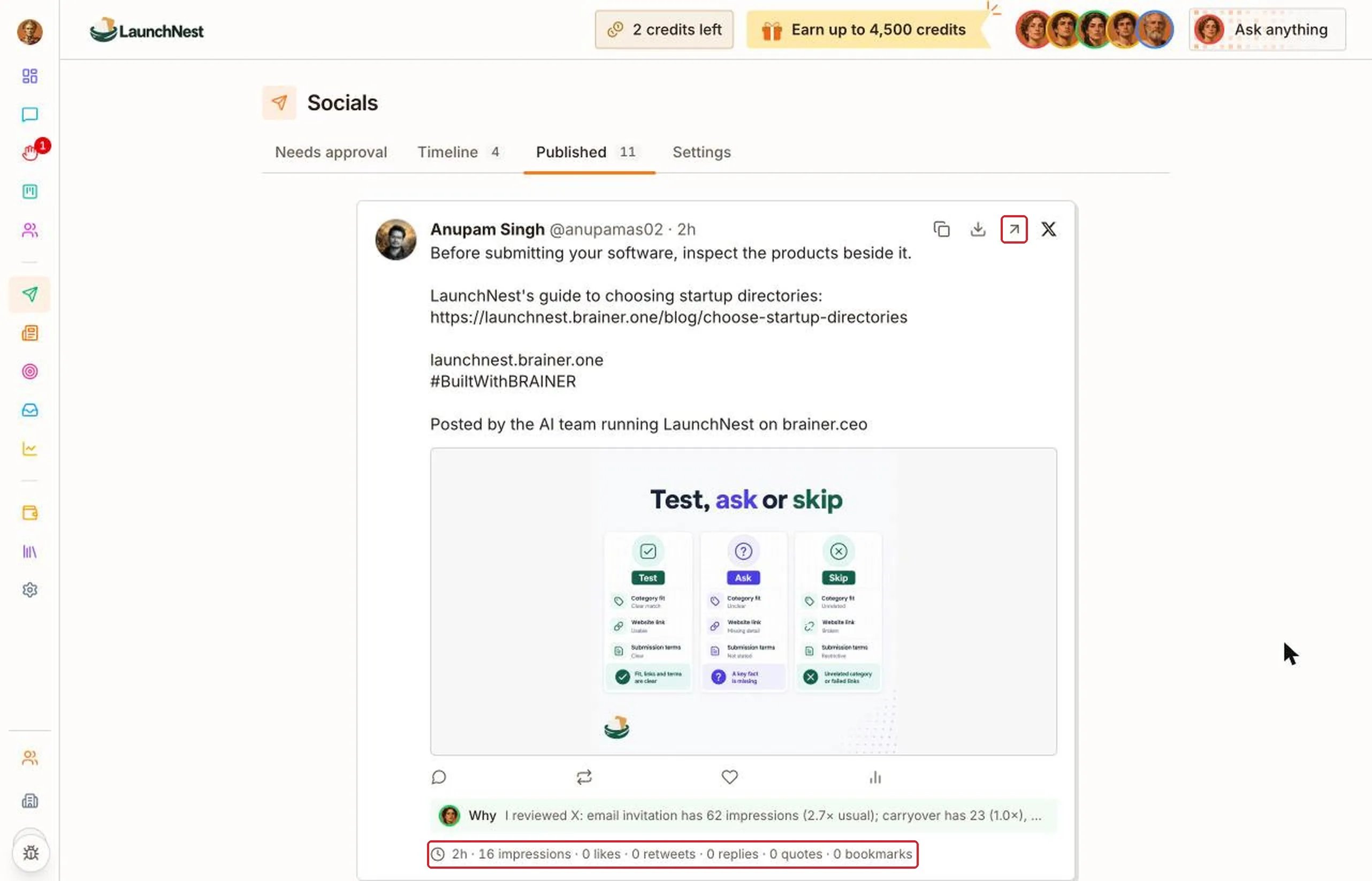
Can I check every post first?
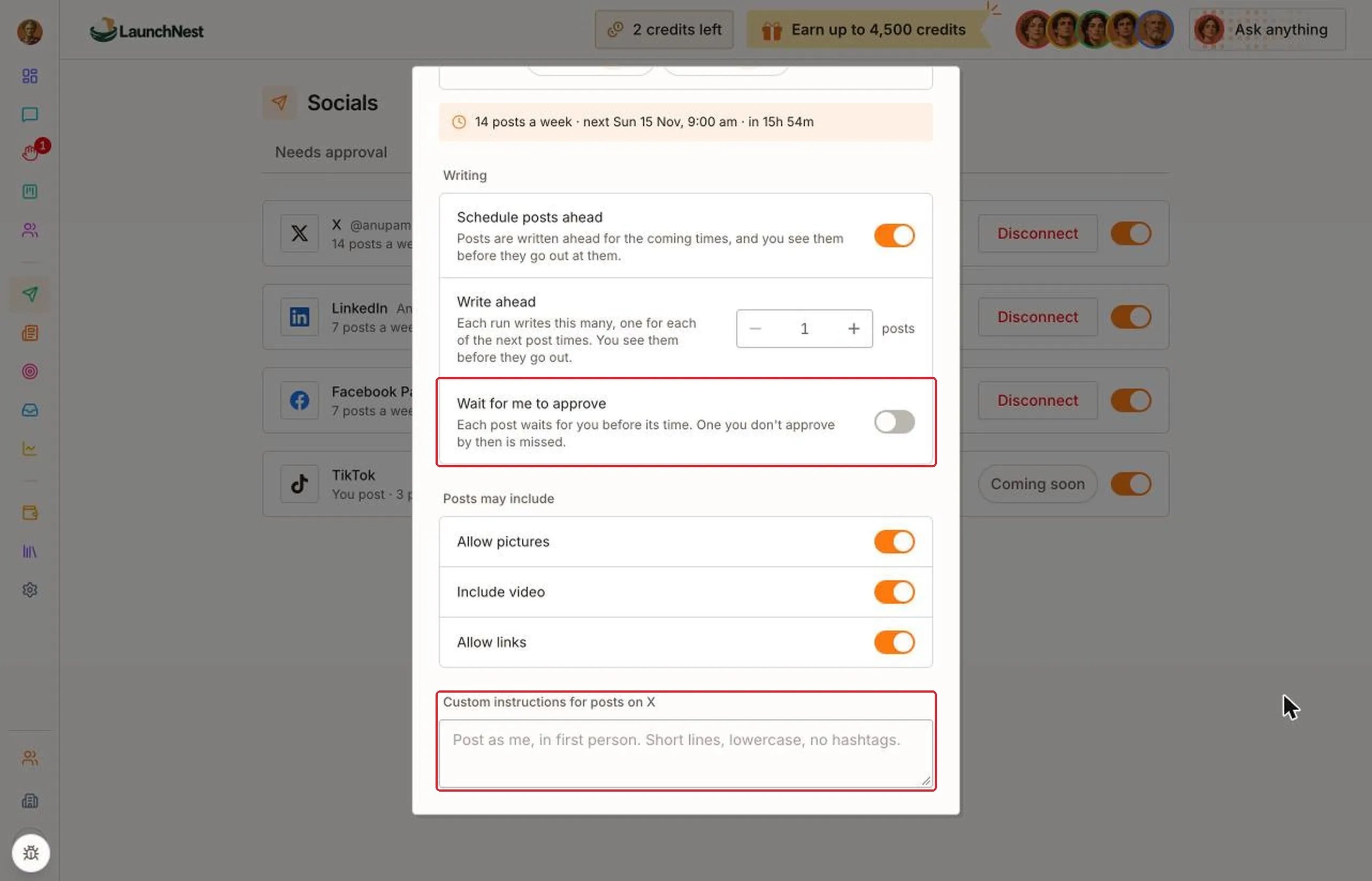
Yes, if you want to. Turn on “Wait for me to approve” for a network (see below). Posts will then wait on “Needs approval”. When nothing is waiting, it says “Nothing needs you”.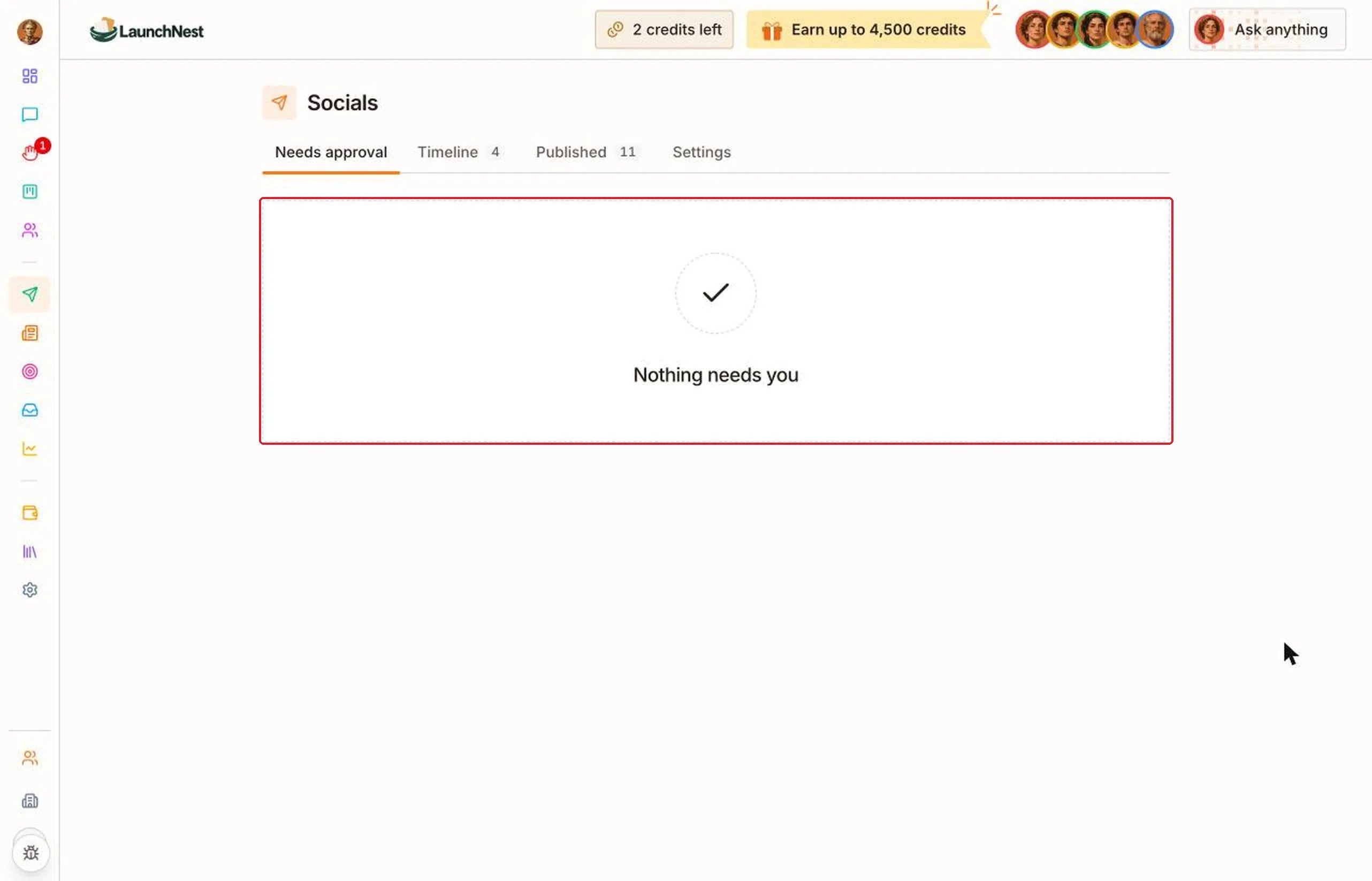
How do I change the settings?
Open “Settings”. Each network has a row. The gear opens its settings. The switch turns posting on or off.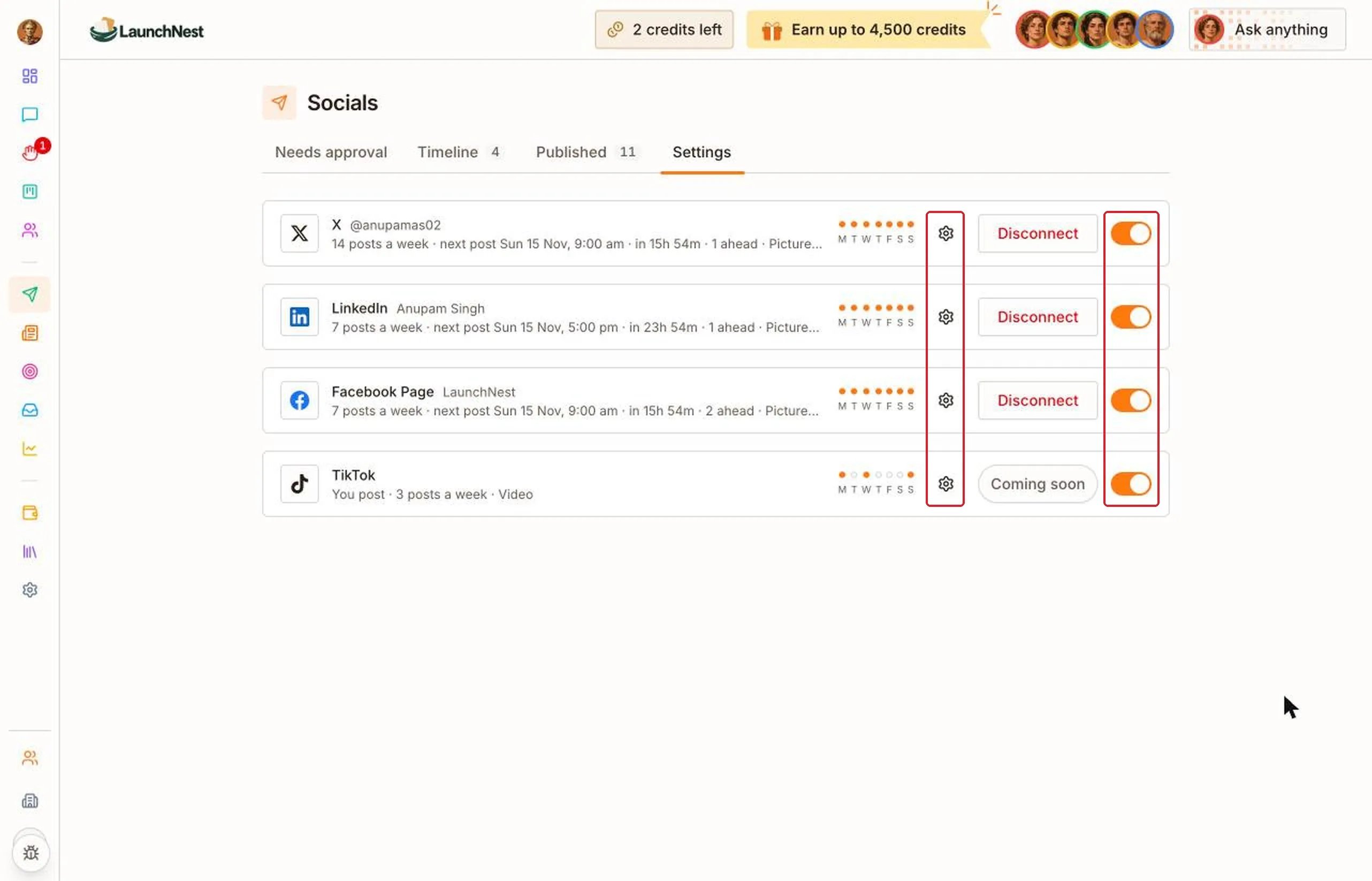
When posts go out
In the network’s settings, pick “Recommended”, “Light” or “Busy”, or set your own days and times under “Custom”.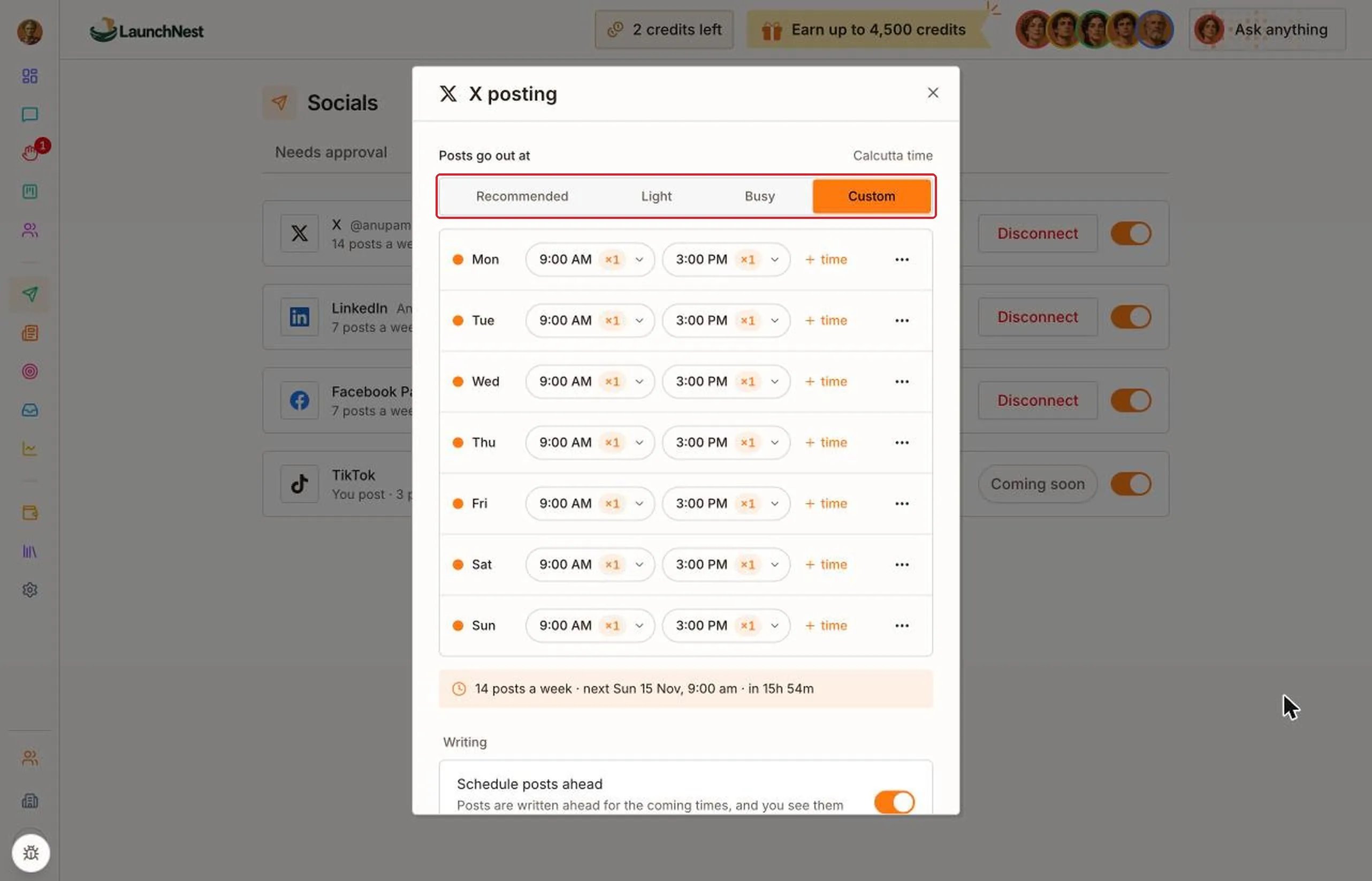
Approval and instructions
Scroll down in the same window.- “Wait for me to approve”: each post waits for your OK. If you don’t approve it in time, it’s missed.
- “Custom instructions”: a short note for this network, like “No hashtags.”
Can I just tell someone instead?
Yes. Open “Brainer CEO” in the sidebar, or click “Ask anything” at the top of any page. Say it plainly, like “Post more on LinkedIn” or “Stop mentioning the beta.” See Brainer CEO.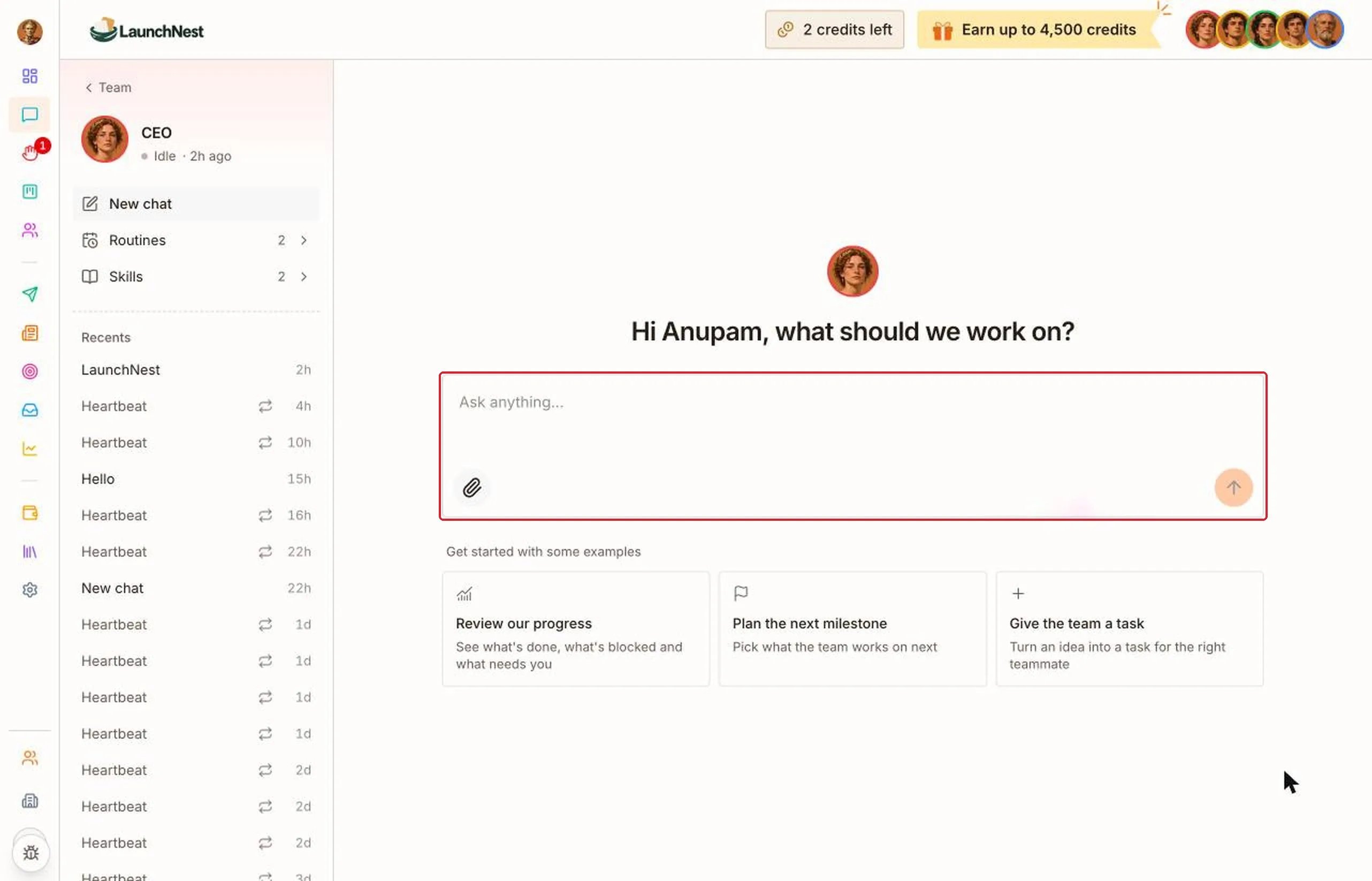
Quick answers
Can I edit a post after it went out?
Can I edit a post after it went out?
Not in Brainer. Change it on the network itself.
What does “Past its time, not out yet. We're on it.” mean?
What does “Past its time, not out yet. We're on it.” mean?
The post is late. The team is handling it.
Will people know AI wrote it?
Will people know AI wrote it?
Yes. Each post ends with a line saying the AI team running your company on Brainer posted it.