

How it works
Your team keeps the Dashboard up to date as it works. The CEO writes a short update at the top, and every post, article, email, ad and task shows up here by itself. You don’t need to do anything here. Read it, click into anything you want to see more of, and turn channels on or off when you want. To change what the team is doing, open “Ask anything” at the top and tell the CEO. See Brainer CEO.What’s the first thing I see?
Click “Dashboard” in the sidebar. At the top is the “Brief” from your CEO: one or two sentences on how the business stands and what the team is doing next.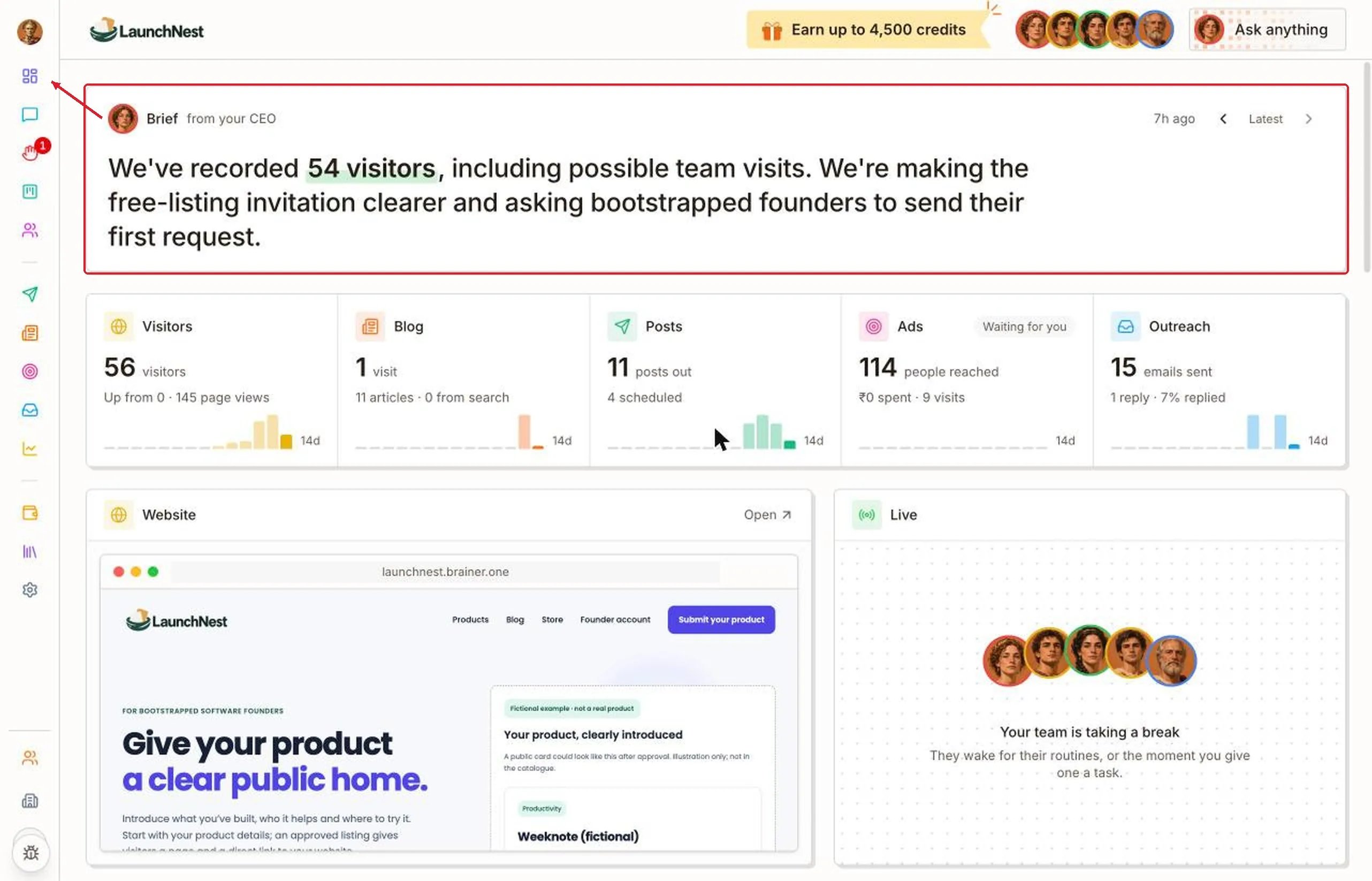
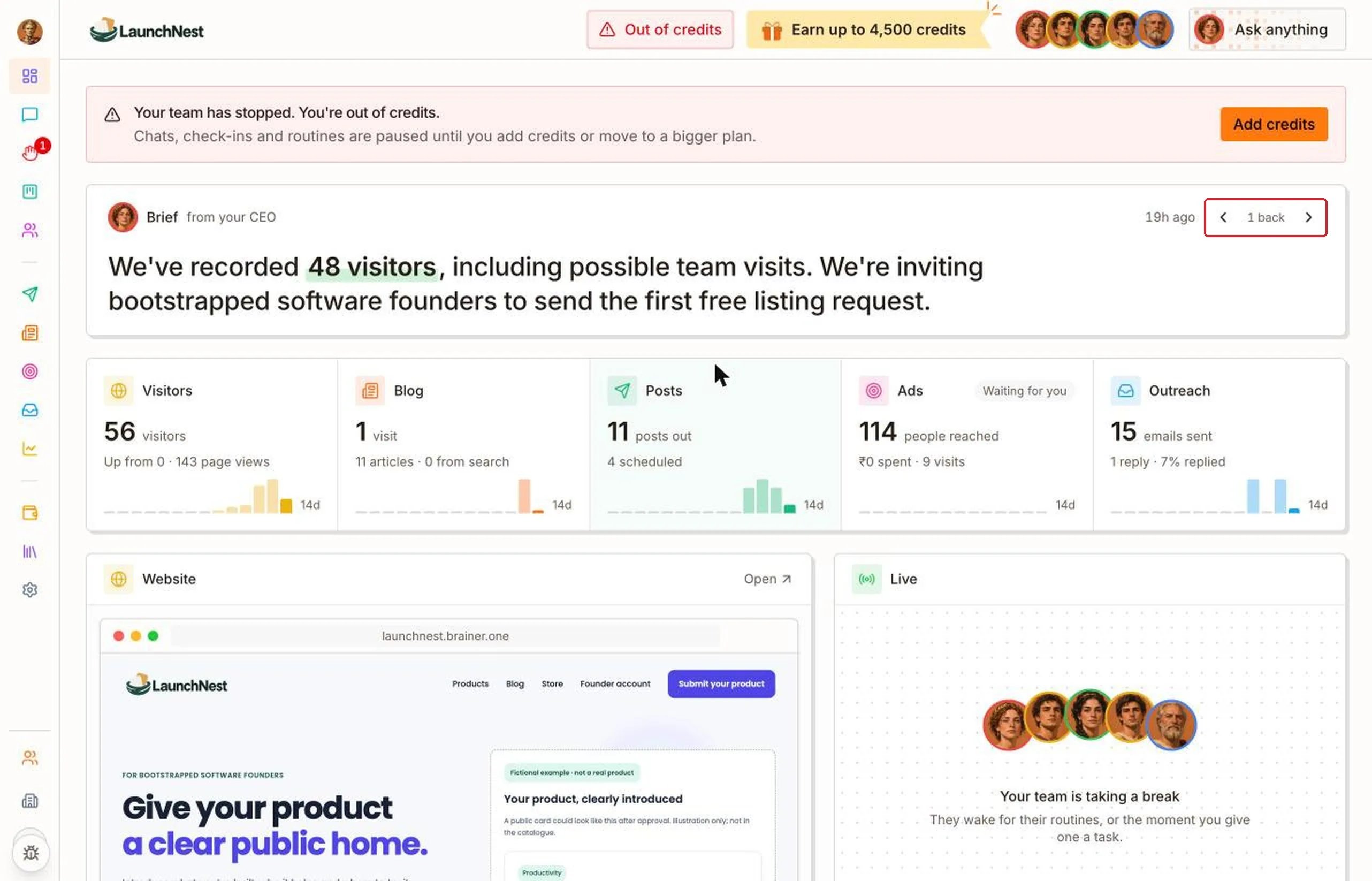
Tip: The Brief only changes when the business actually moves, like a new visitor count or a first signup. If it hasn’t changed, nothing big has happened yet.
How are my numbers doing?
Under the Brief are your main numbers: “Visitors”, “Blog”, “Posts”, “Ads” and “Outreach”. The small bars show the last 14 days.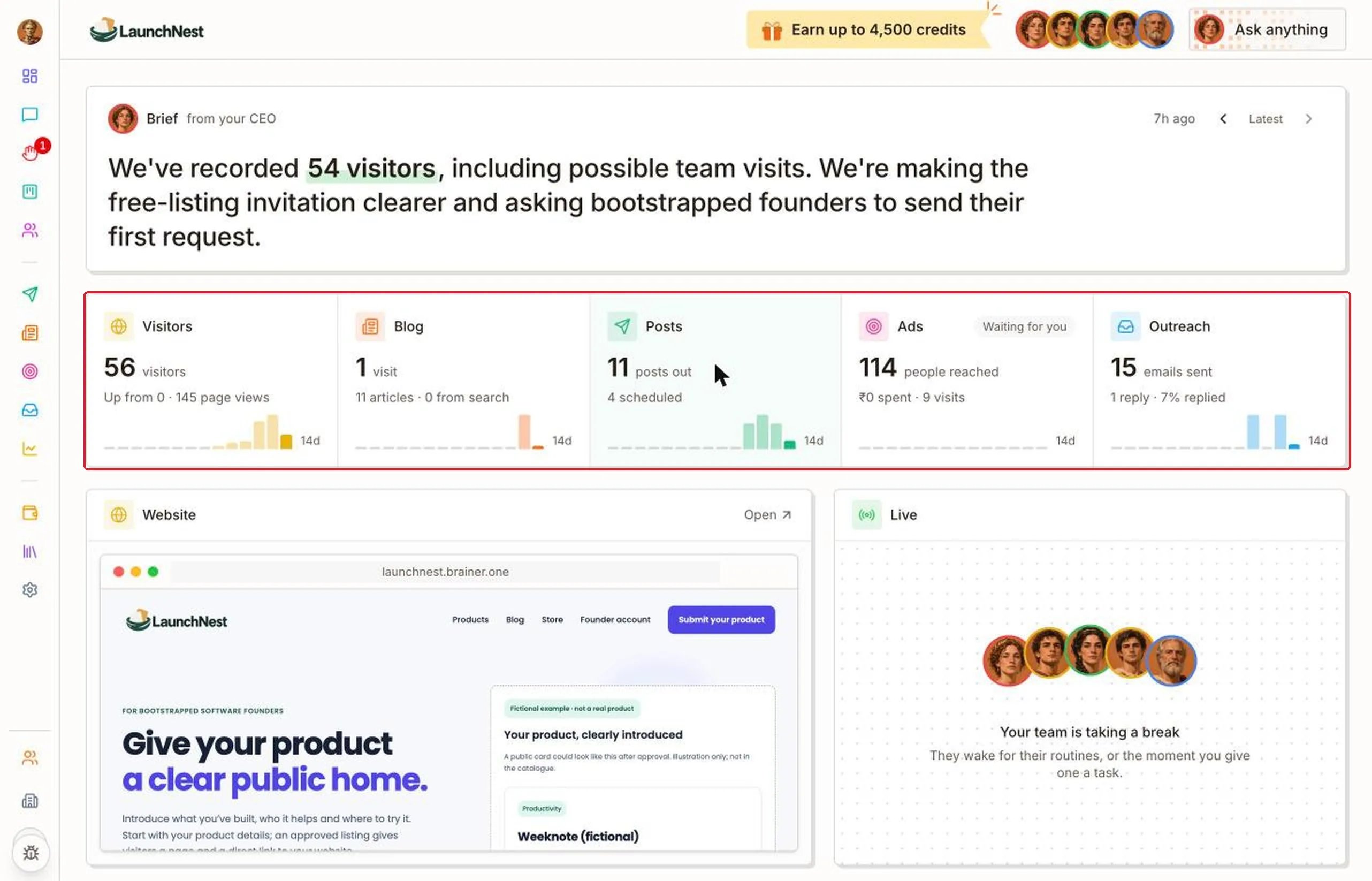
Is my website live?
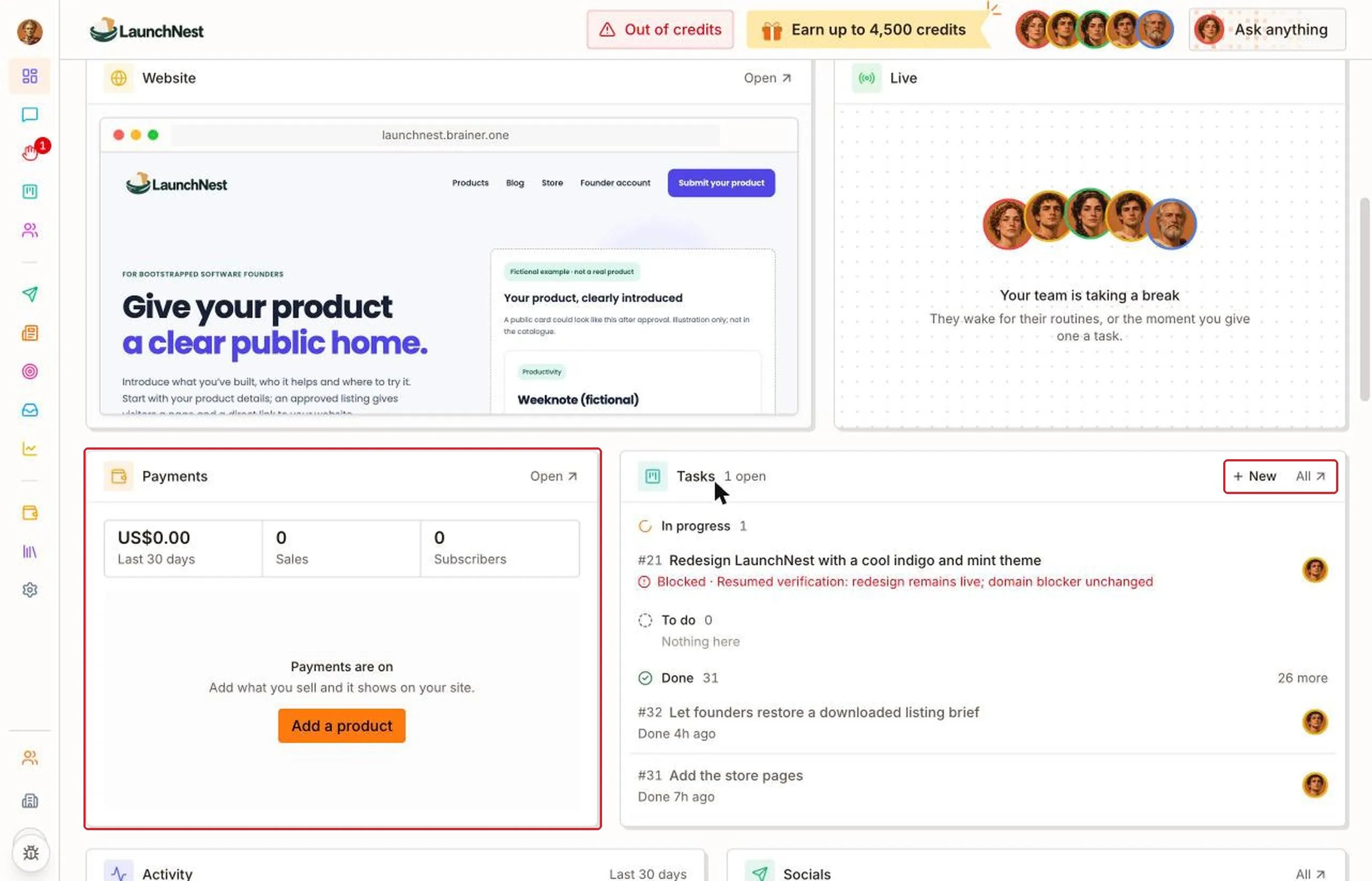
The “Website” card shows your live site. Click “Open” to visit it. “Live” shows which teammates are working right now. When nobody is, it says “Your team is taking a break”. They start again at their next scheduled time, or as soon as you give one of them a task.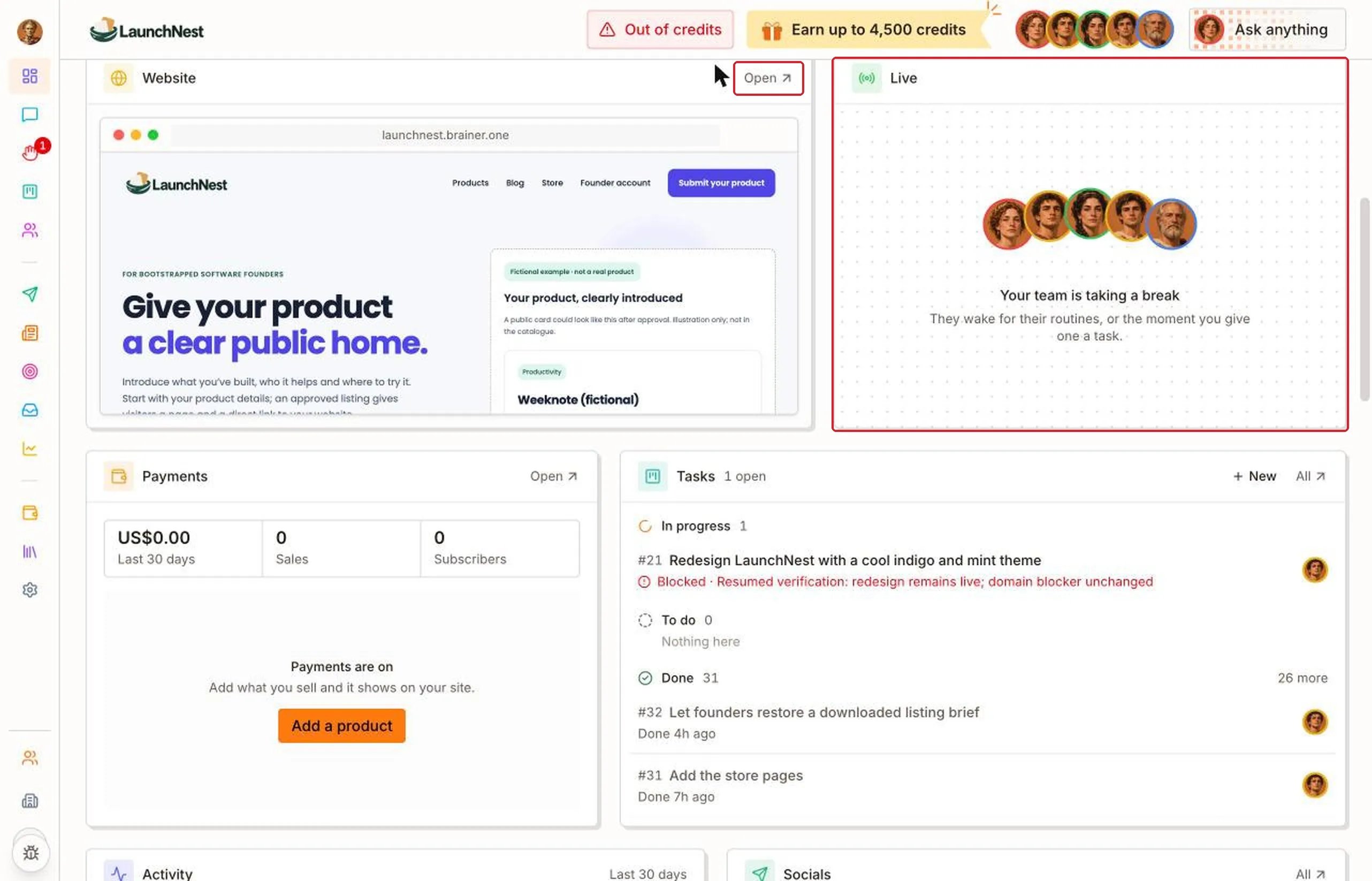
What about money and tasks?
- “Payments” shows your sales and subscribers for the last 30 days. Click “Add a product” to add what you sell, and it shows on your site.
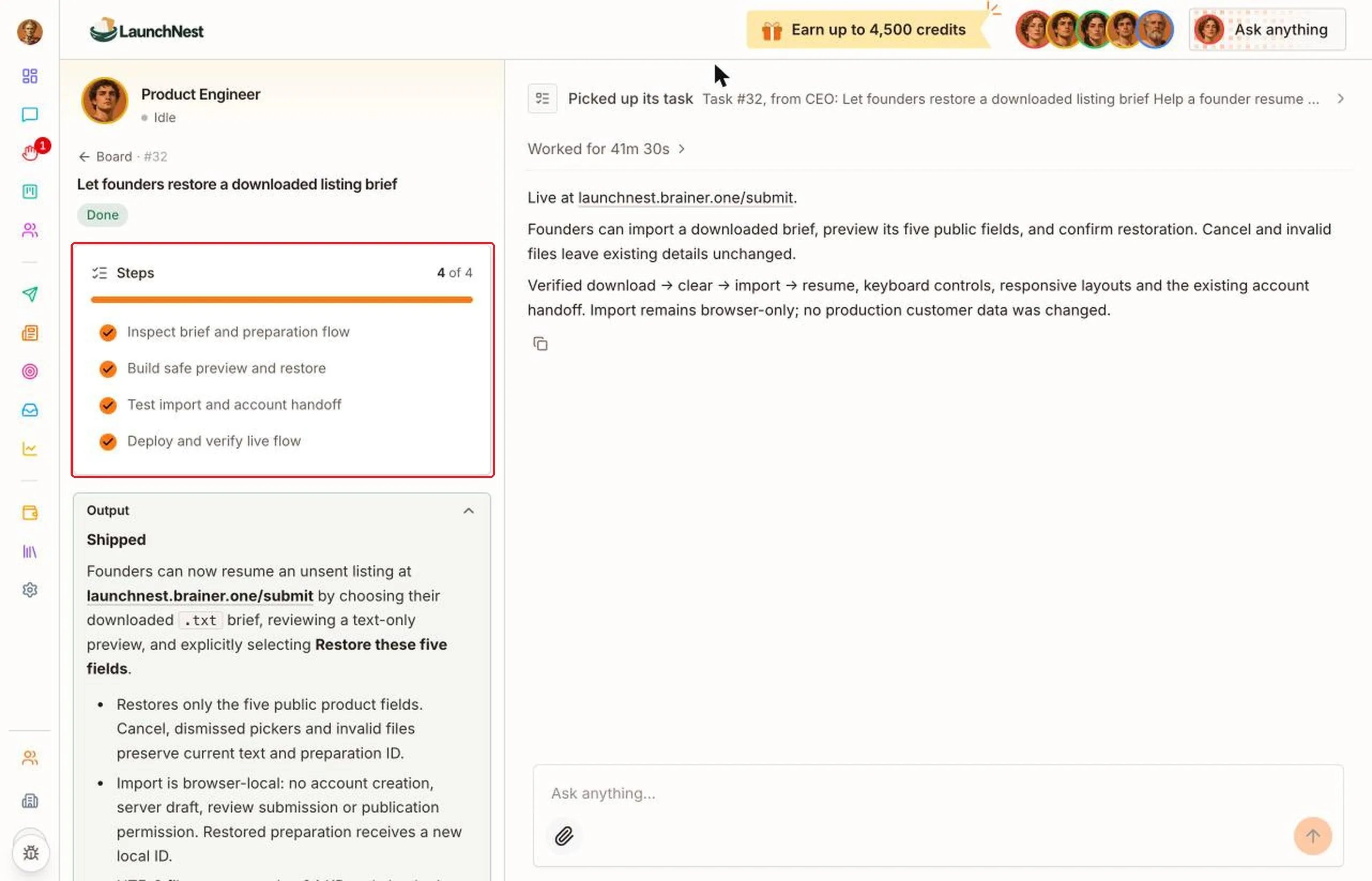
- “Tasks” shows what’s in progress, to do and done. Blocked tasks are shown in red. Click “New” to add a task, or “All” to see the full list.
What has the team been doing?
“Activity” lists everything the team did in the last 30 days: posts, articles, emails, site updates and finished tasks. “Socials” shows how many posts are waiting for approval, scheduled and posted this week.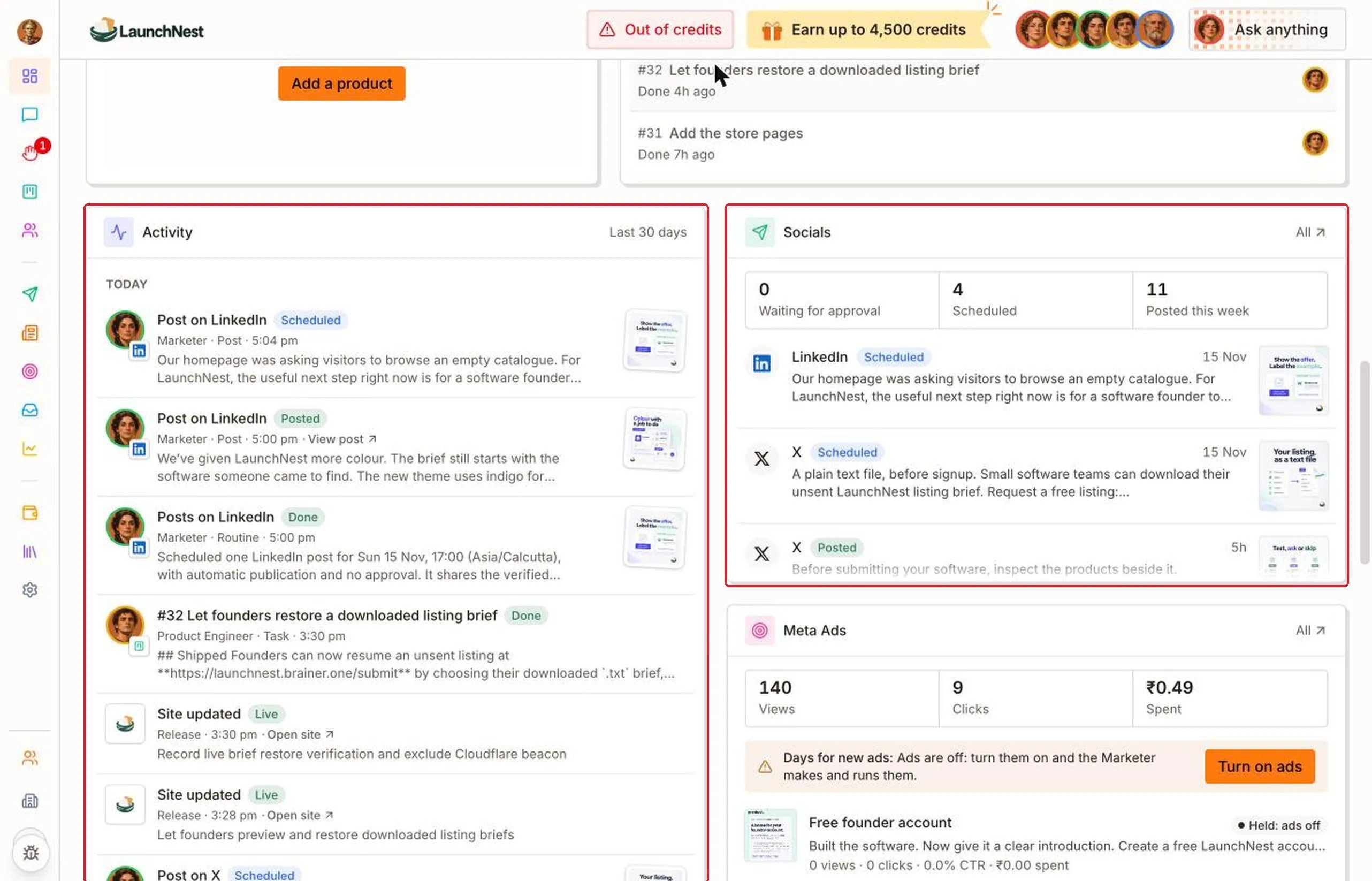
What about ads, emails and what’s next?
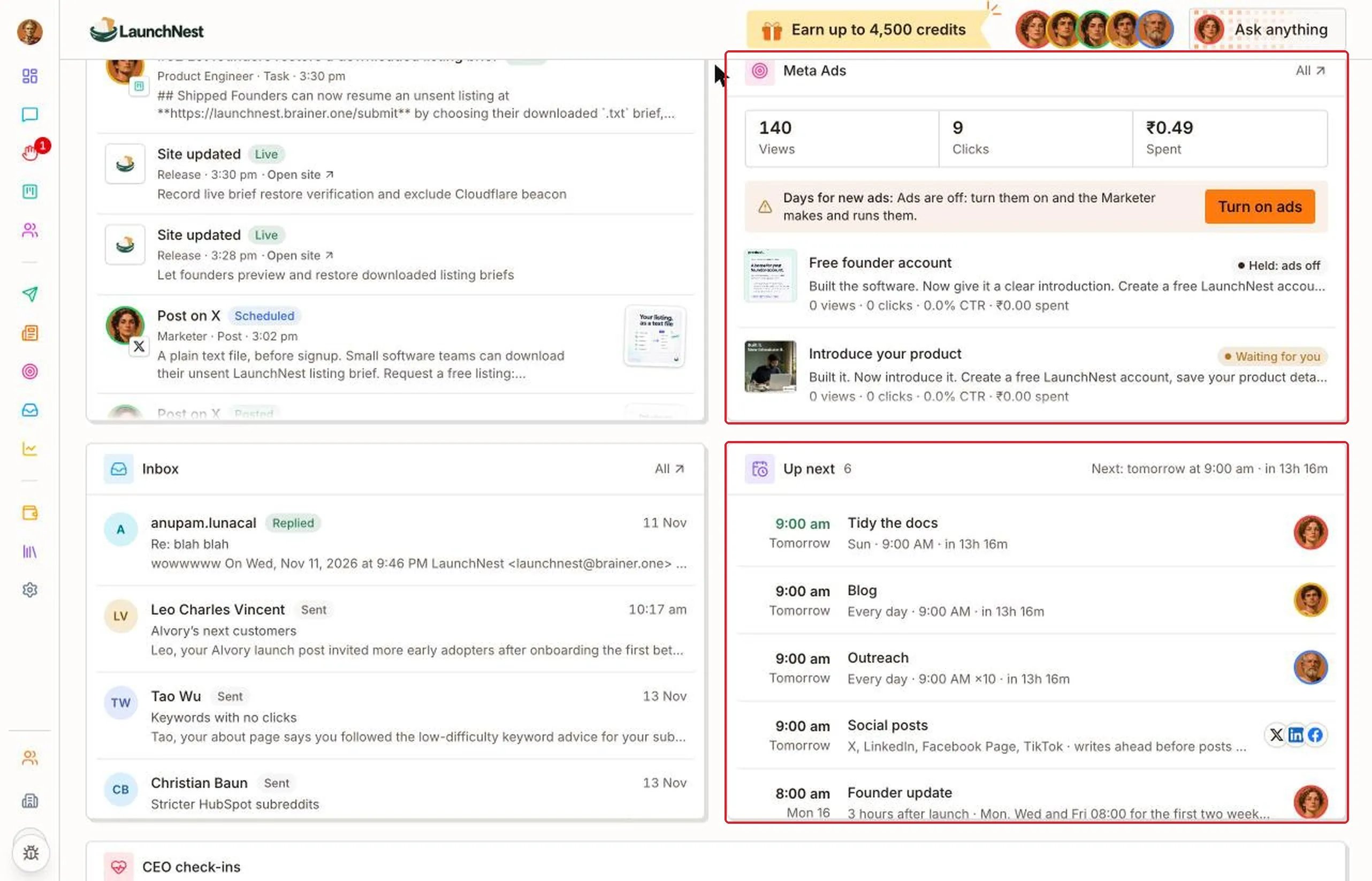
- “Meta Ads” shows views, clicks and spend, plus any ad waiting for you.
- “Inbox” shows the latest emails sent and any replies.
- “Up next” shows what runs next, when, and which teammate runs it.
How do I turn channels on or off?
At the bottom, “Channels” lists everything that runs on a schedule: “Blog”, “Social media”, “Meta ads” and “Outreach”. A green dot means it’s running. Use the switch to turn one on or off. “CEO check-ins”, above it, shows when the CEO last looked over the company and when it will next. You can change how often here.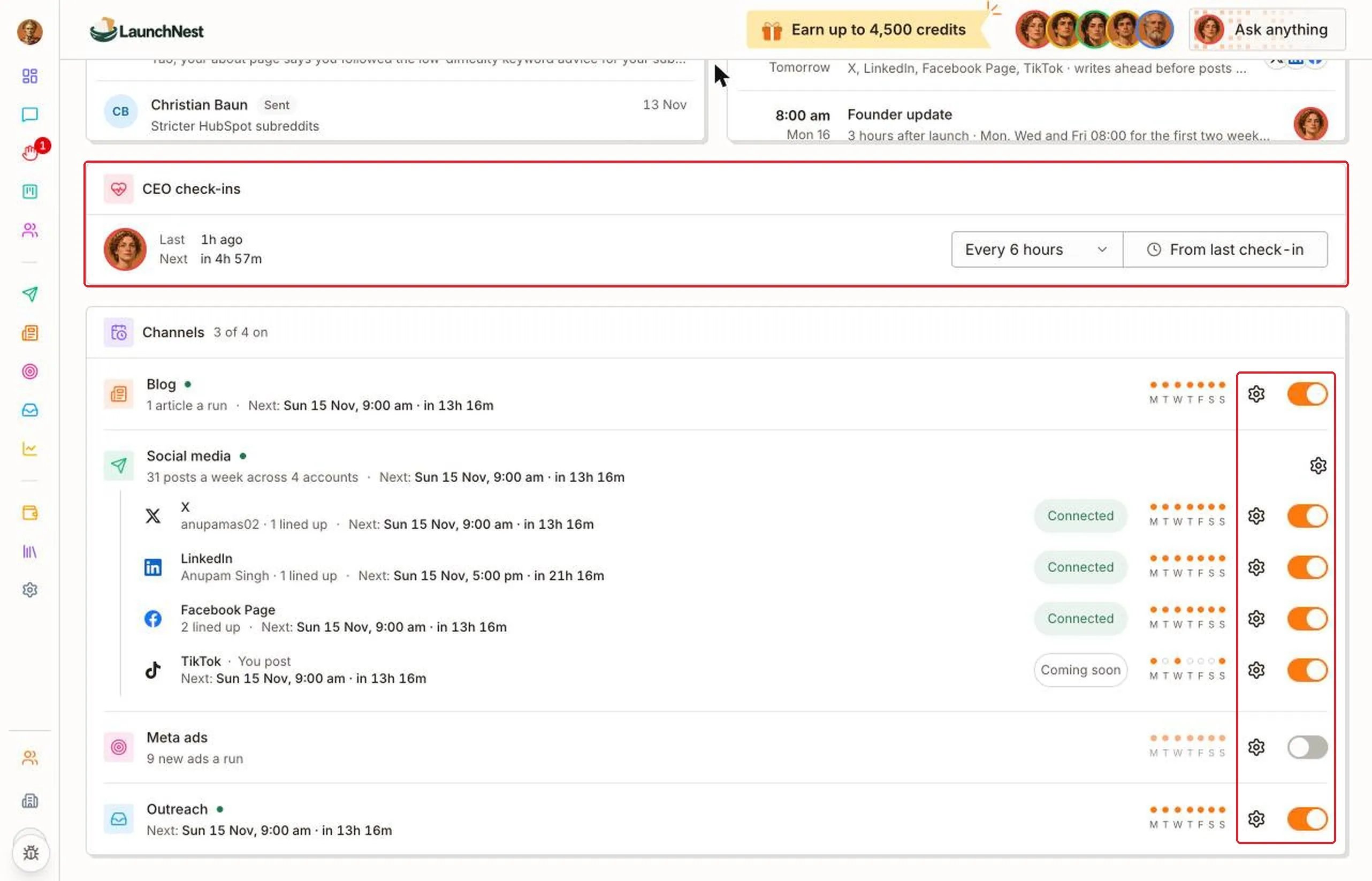
Tip: Keep at least one channel on at all times. With everything off, nobody new hears about your company.
How do I change when a channel runs?
Click the gear next to a channel. Pick how often, like “Weekly”, “Daily” or “Custom”, then click “Save”.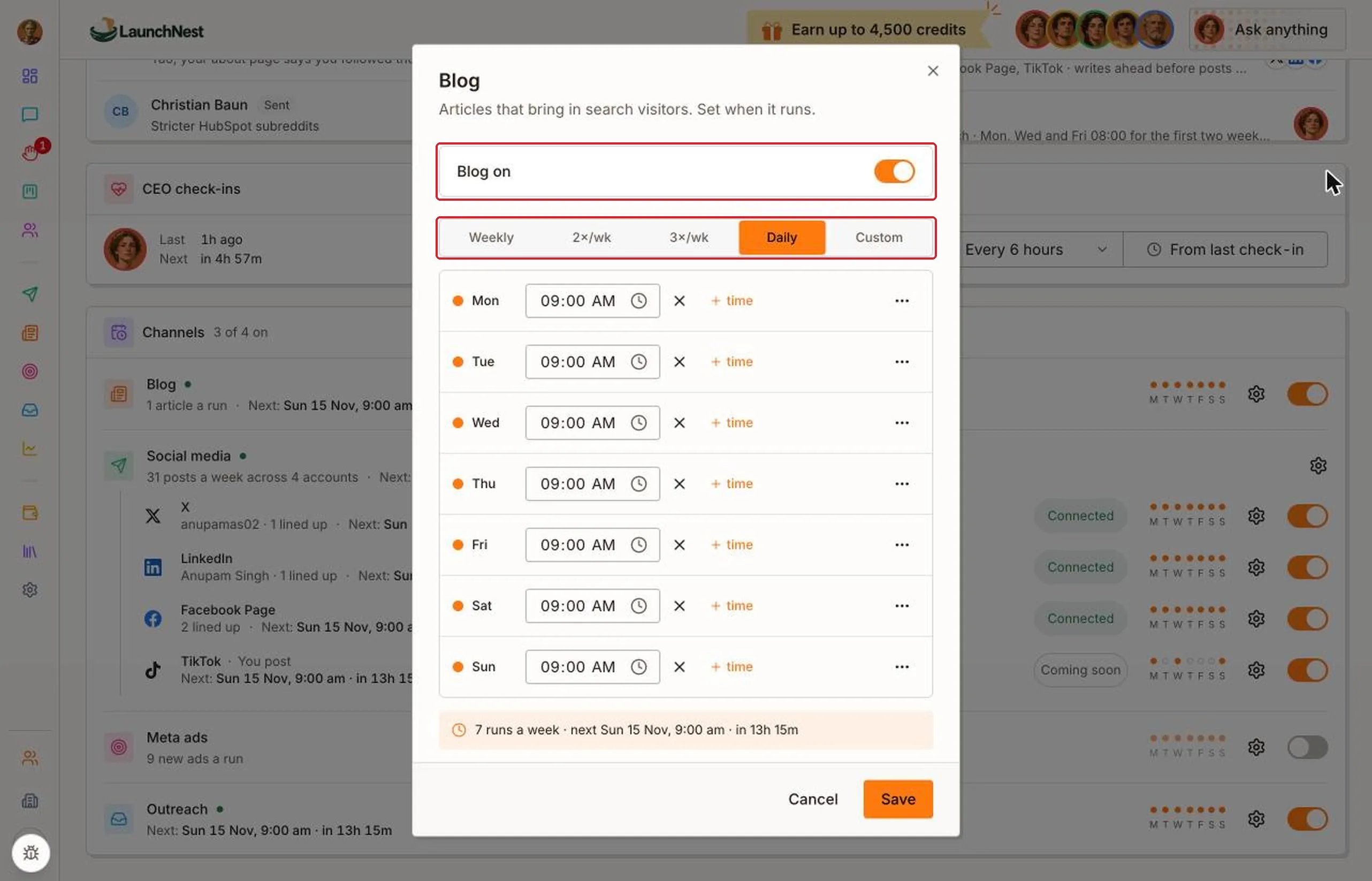
Quick answers
Why does it say “Your team has stopped”?
Why does it say “Your team has stopped”?
You’re out of credits. Chats, check-ins and routines pause until you click Add credits or move to a bigger plan.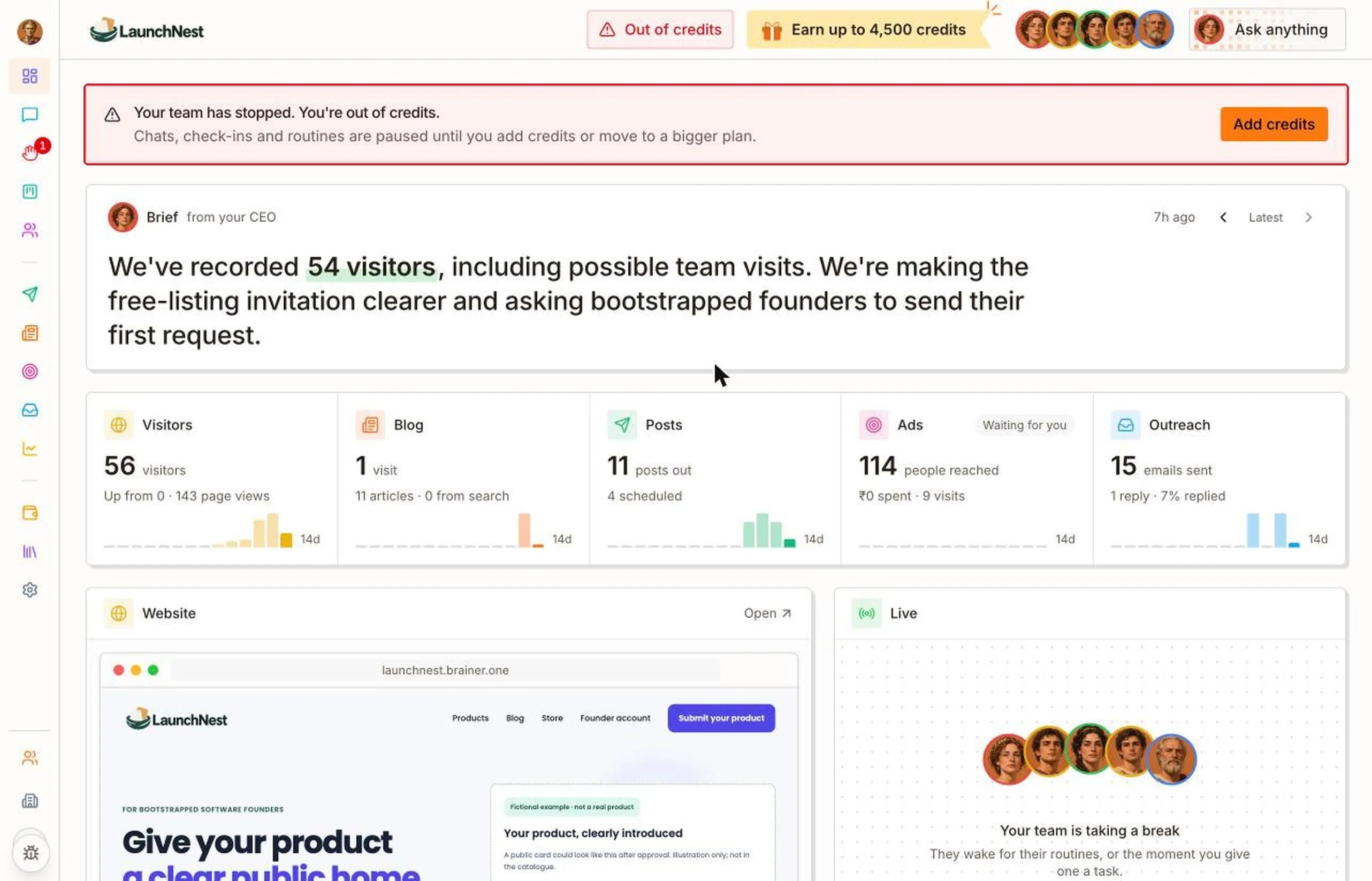
Do I need to update the Dashboard?
Do I need to update the Dashboard?
No. It updates itself as the team works.
Can I go straight to a page from here?
Can I go straight to a page from here?
Yes. Click a number, a card’s All, or any item in Activity.
Where do I approve things?
Where do I approve things?
Anything marked Waiting for you is on its own page and on Needs you in the sidebar.