

How it works
What it’s for. Artifacts keeps all of your company’s work in one place, so you never have to ask “where is that file?” Why it helps. Your team works from the same documents you can read here. So when you read them, you’re seeing exactly what your CEO, Marketer and Writer are working from. That includes your brand voice, your plan, and what they’ve learned so far. How it runs.- Your team writes and updates the company’s documents as it works.
- Files you send in a chat are saved under “Uploads” by themselves.
- Every picture your team makes for a post, ad or article is saved under “Pictures & videos”.
- Talk to the CEO. If a document is wrong or out of date, tell the CEO what to change, like “Our price is now $19. Please update Company.” You can also send files to the CEO in the chat.
- Use the “Artifacts” page. Read any document, open the files you sent, and download any picture.
Tip: Documents on this page are read-only. To change one, tell the CEO. It updates the document, and the team works from the new version.
Open Artifacts
Click “Artifacts” in the left sidebar, under “Company”. There are three tabs: “Documents”, “Uploads” and “Pictures & videos”. The number next to each tab shows how many items it holds.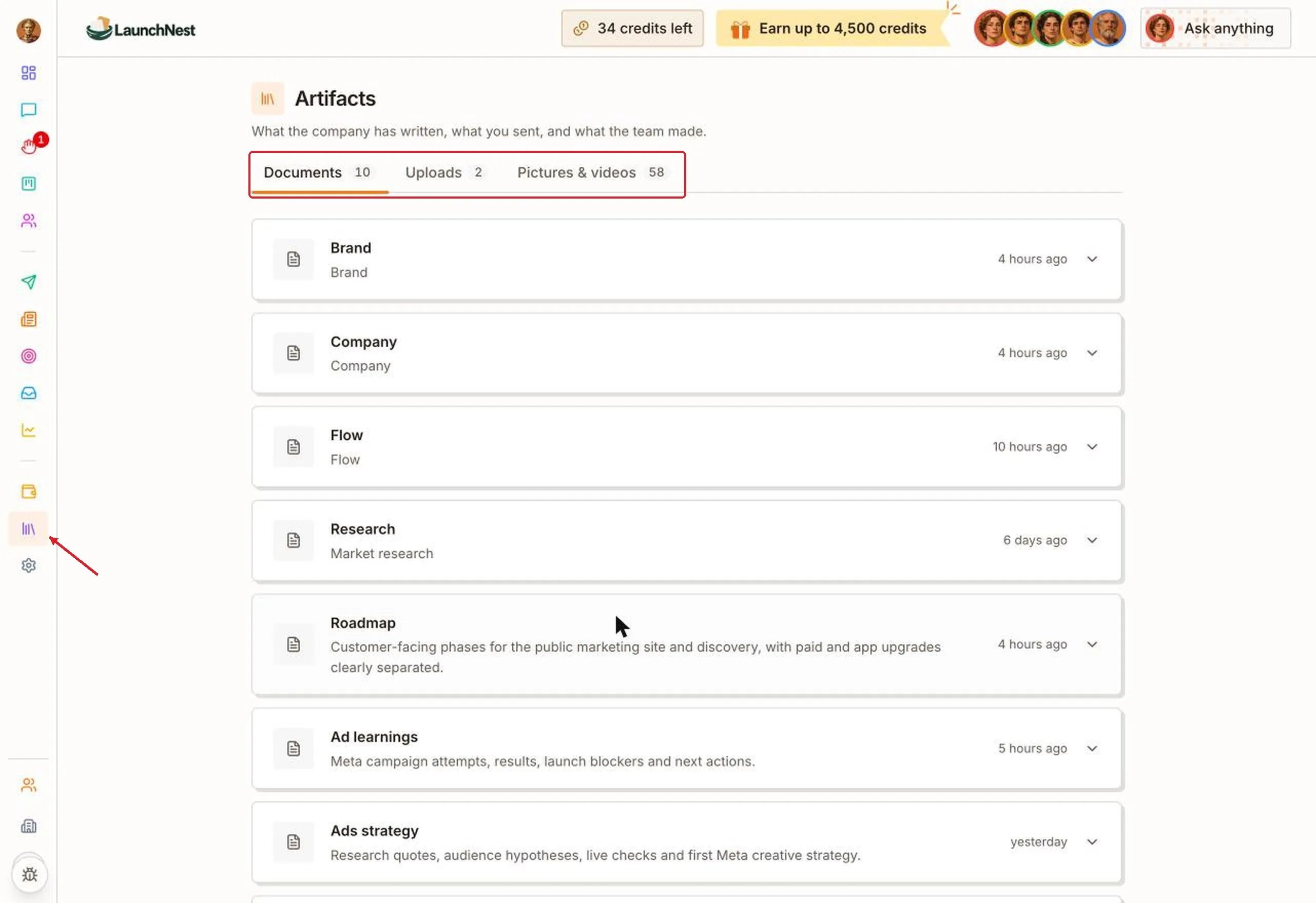
Read your company’s documents
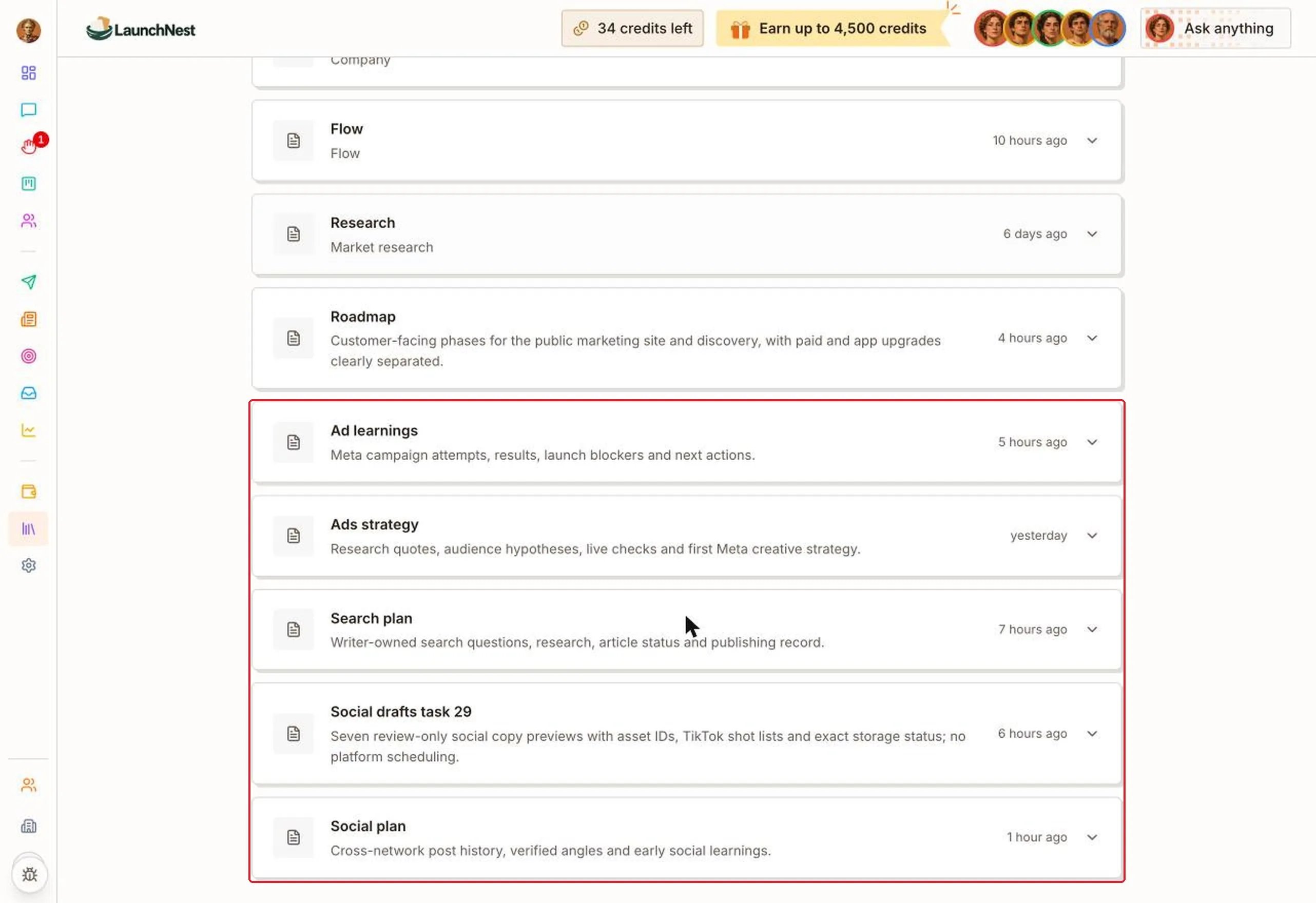
“Documents” lists every document your team works from. Each card shows the document’s name, a short line about what it’s for, and when it last changed. Your company’s main documents come first:- Brand: how your company looks and sounds, and the words it uses and avoids.
- Company: what the company is, who it’s for, and how it works.
- Flow: how people find you, sign up, use your product and pay.
- Research: your market and competitors.
- Roadmap: the plan, step by step.
Open a document
Click a card to read it. Click it again to close it.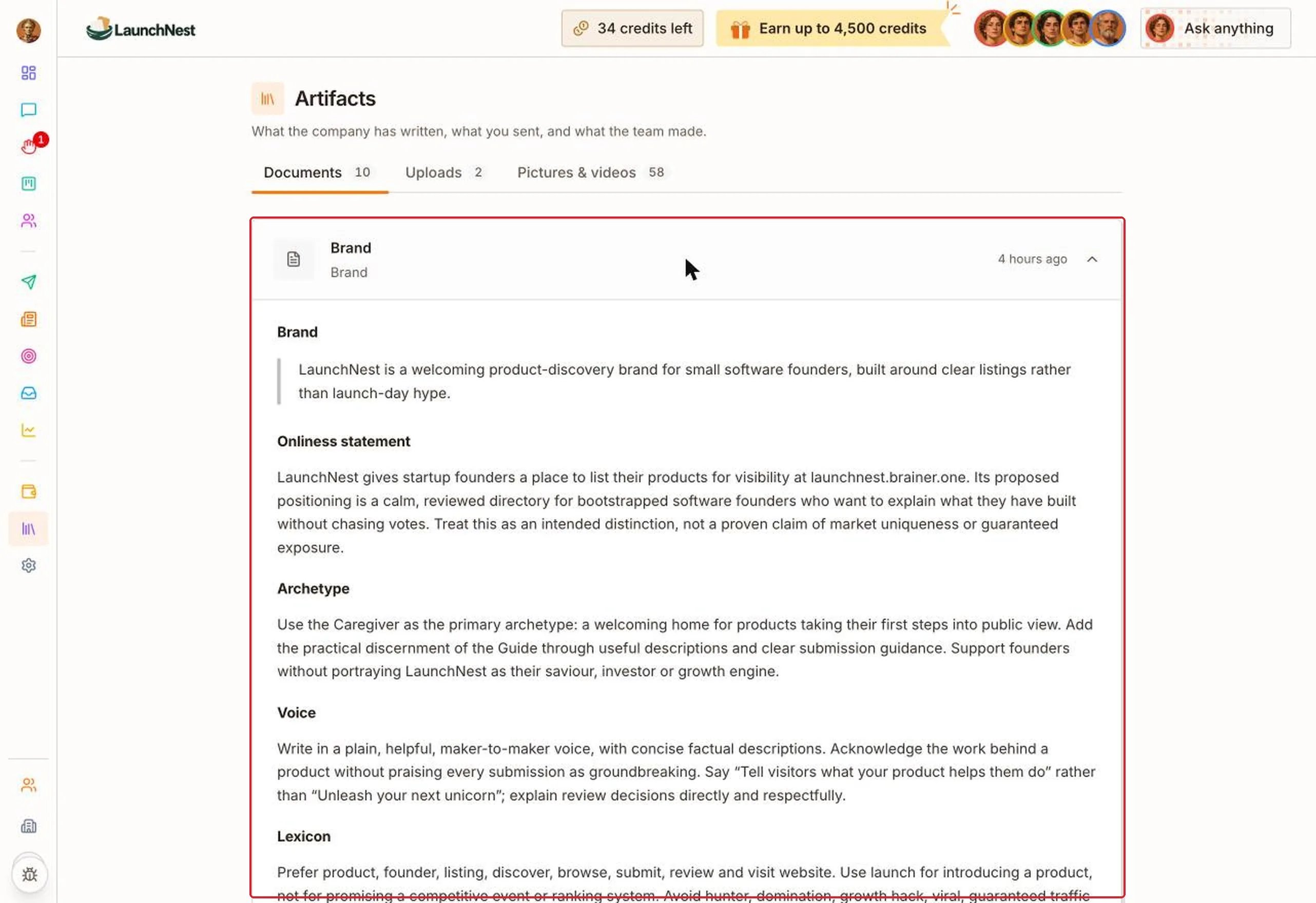
See what the team has learned
The team’s own documents are a running record of what they tried, what worked, and what they’ll do next. For example, “Social plan” shows what the Marketer has posted on each network and why it changed course.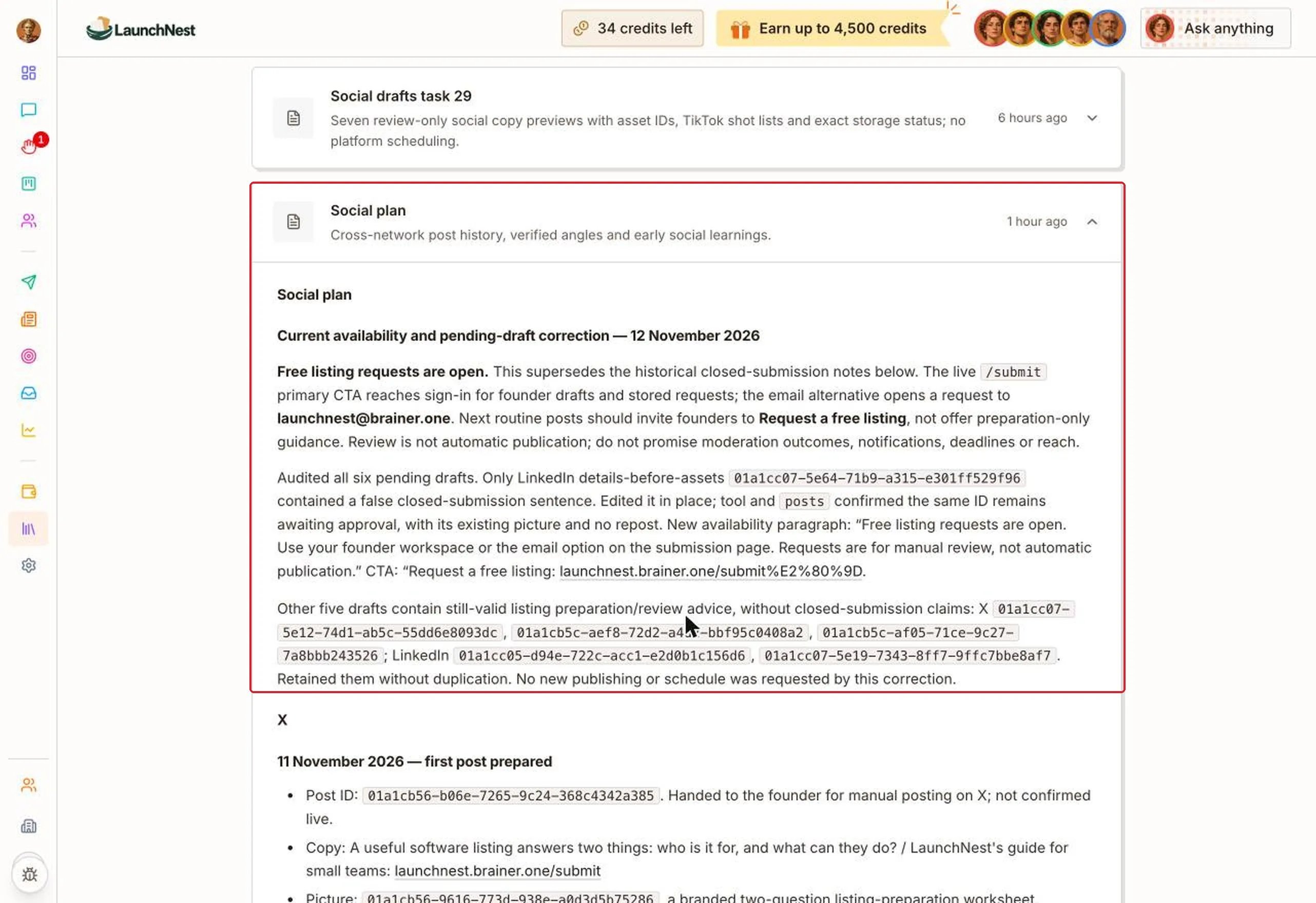
Tip: Read “Brand” and “Company” once, soon after you start. Every post, ad and article is written from them. If something is off, tell the CEO.
Find the files you sent
“Uploads” lists every file you’ve sent to your team in a chat, newest first. Each row shows the file name, type, size and when you sent it.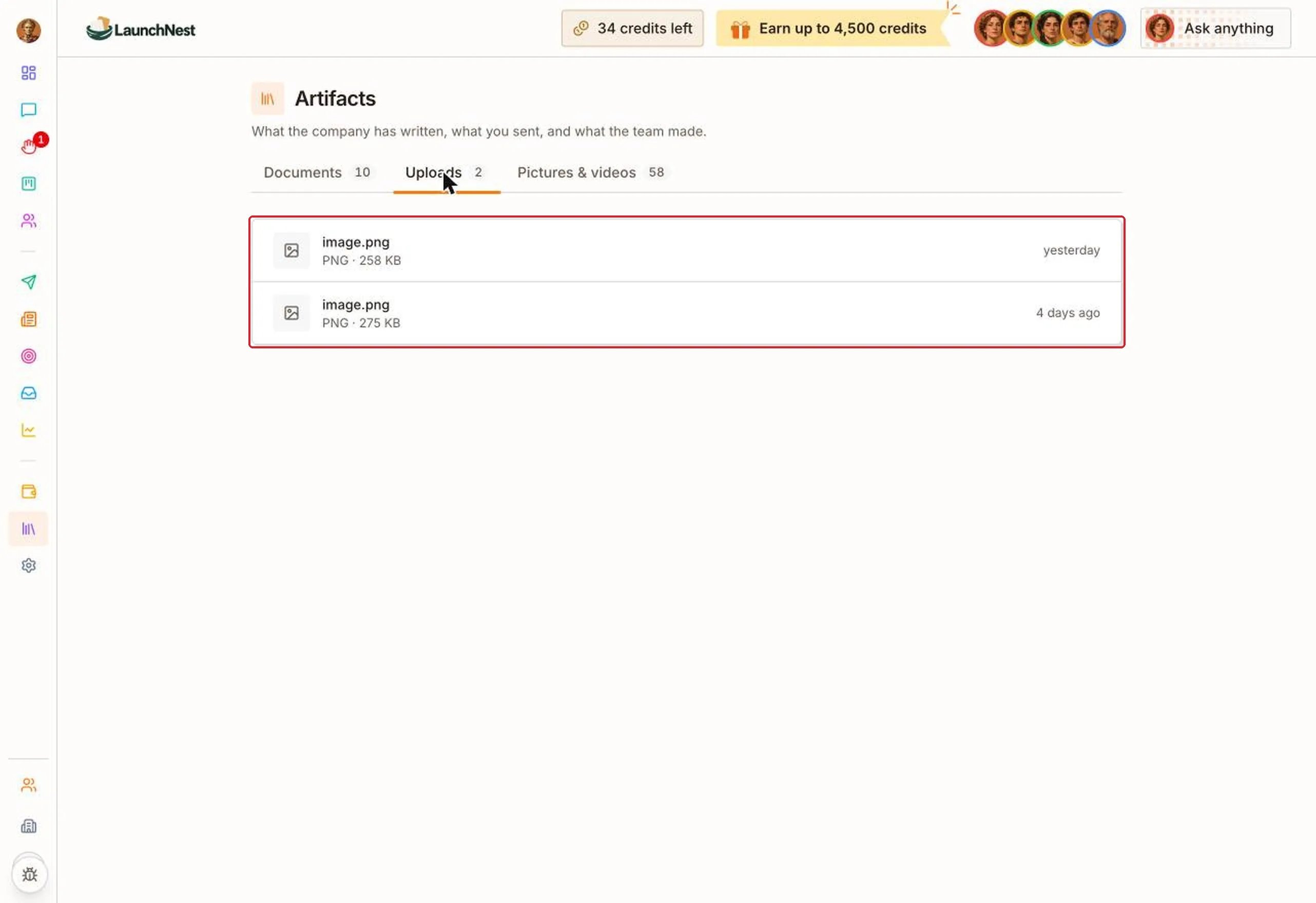
Send a new file
You don’t upload files on this page. Send them in a chat instead: click the paperclip in the CEO chat, pick your file, and send your message. The file then shows up under “Uploads” by itself.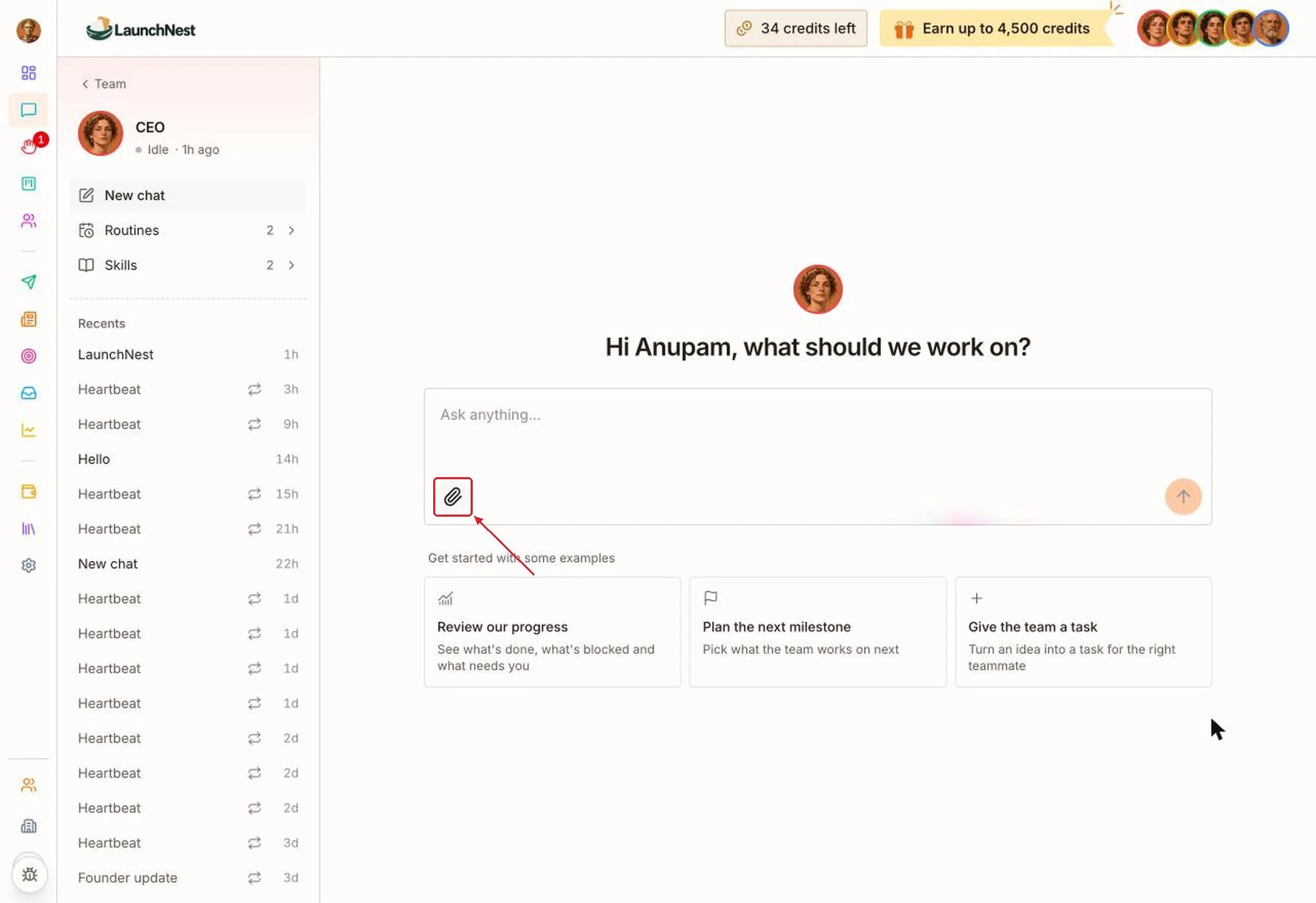
Tip: Send your logo, product photos and price list to the CEO early. Then ask the CEO to use them, for example on your website or in your posts.
See every picture your team made
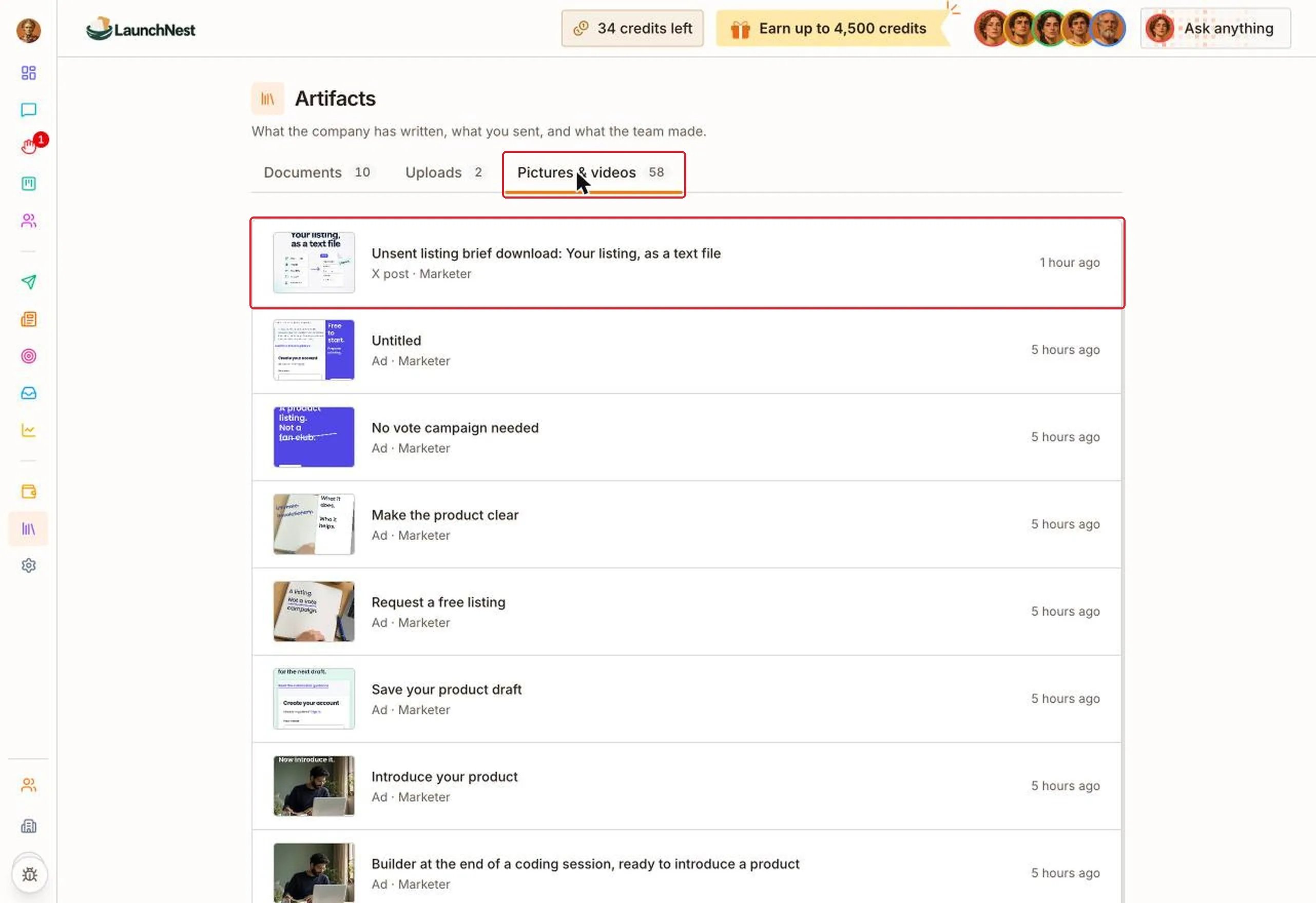
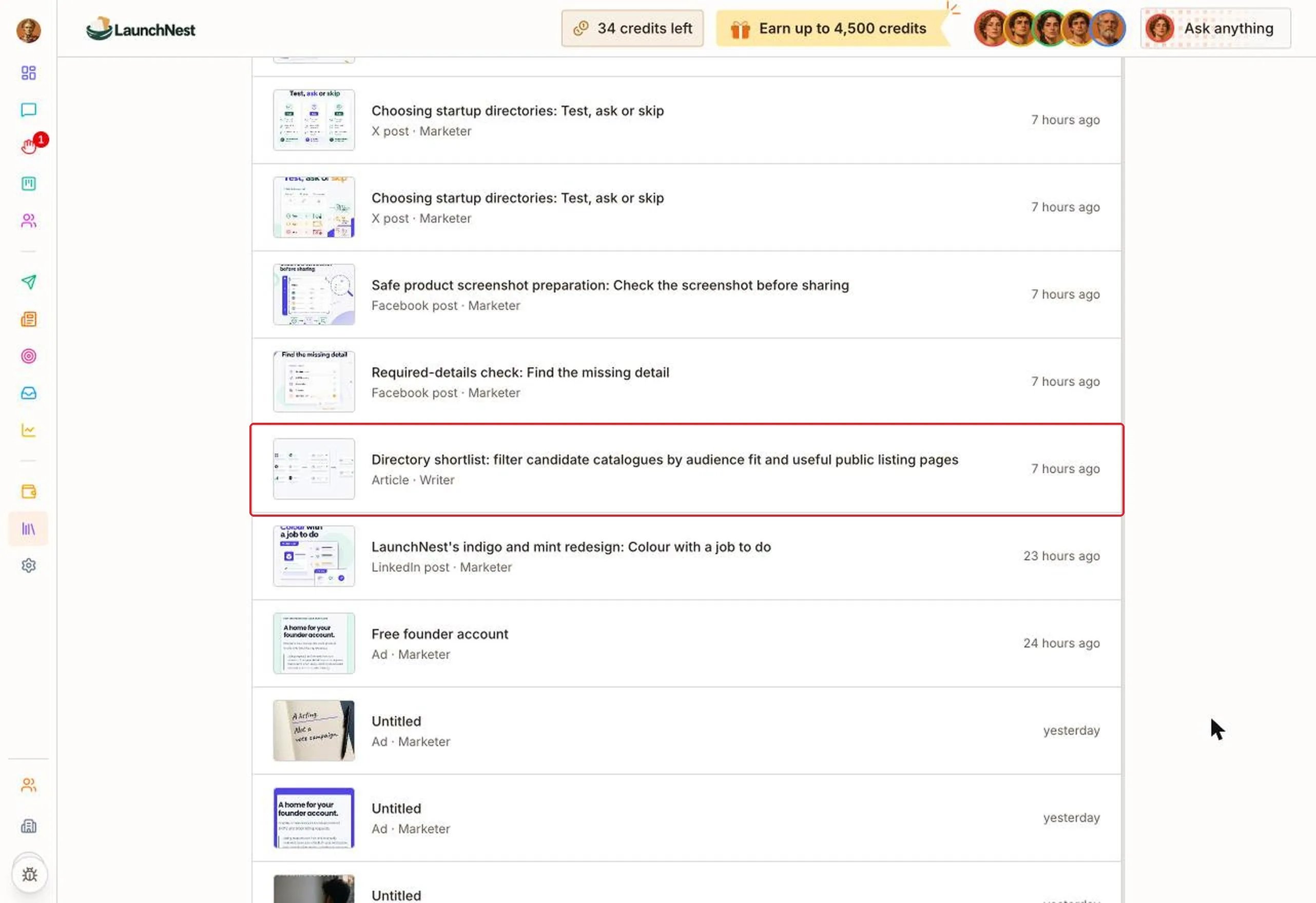
“Pictures & videos” shows everything your team made, newest first. Each row shows:- a small preview
- what the picture shows
- what it was made for, like “X post”, “LinkedIn post”, “Ad” or “Article”
- who made it, like “Marketer” or “Writer”
- when it was made
Open and download a picture
Click a row to see the picture full size. Click “Download” to save it to your computer. Click the × to close it.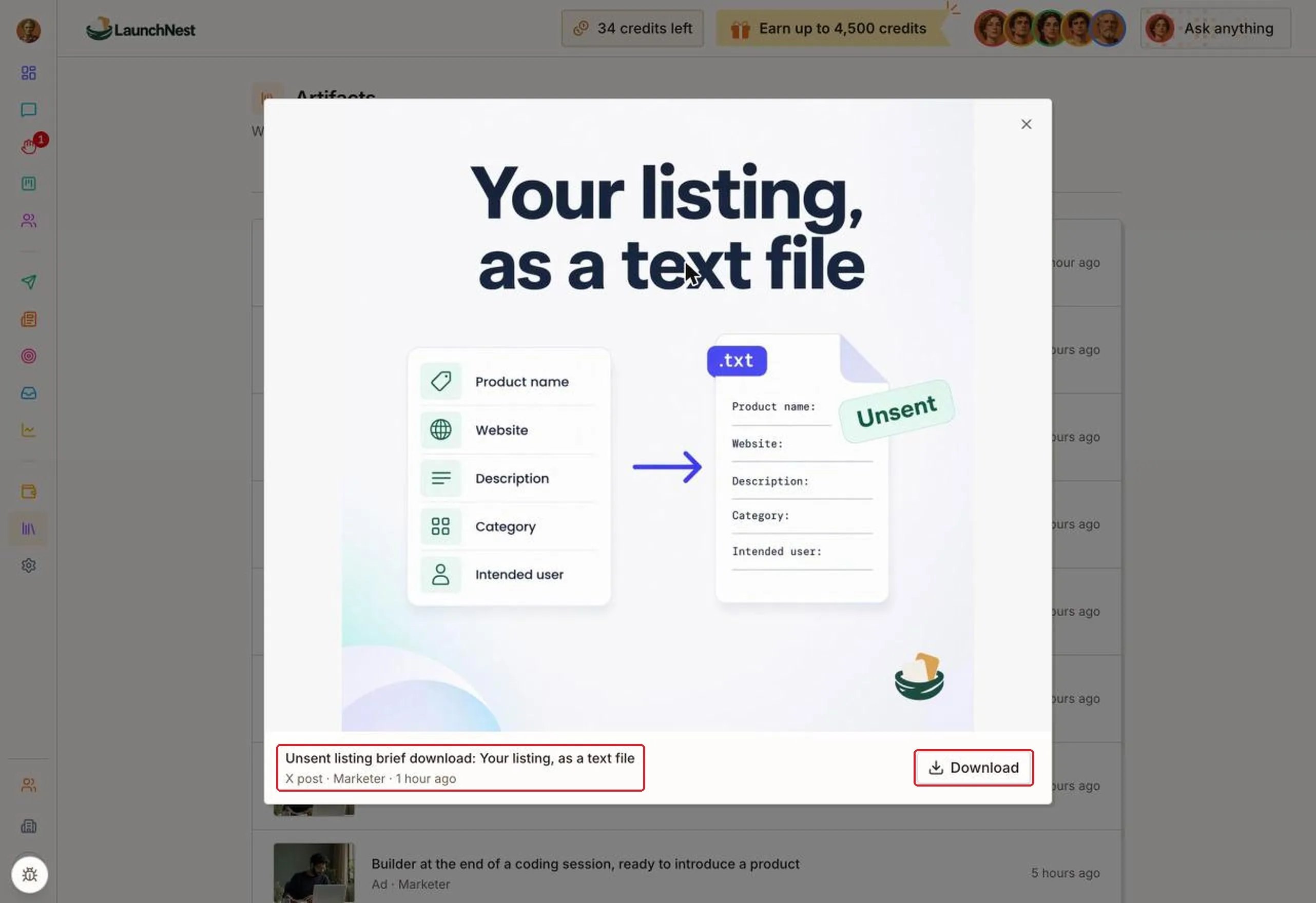
See older pictures
The list shows 10 at a time. Click “Show 10 more” at the bottom to see older ones.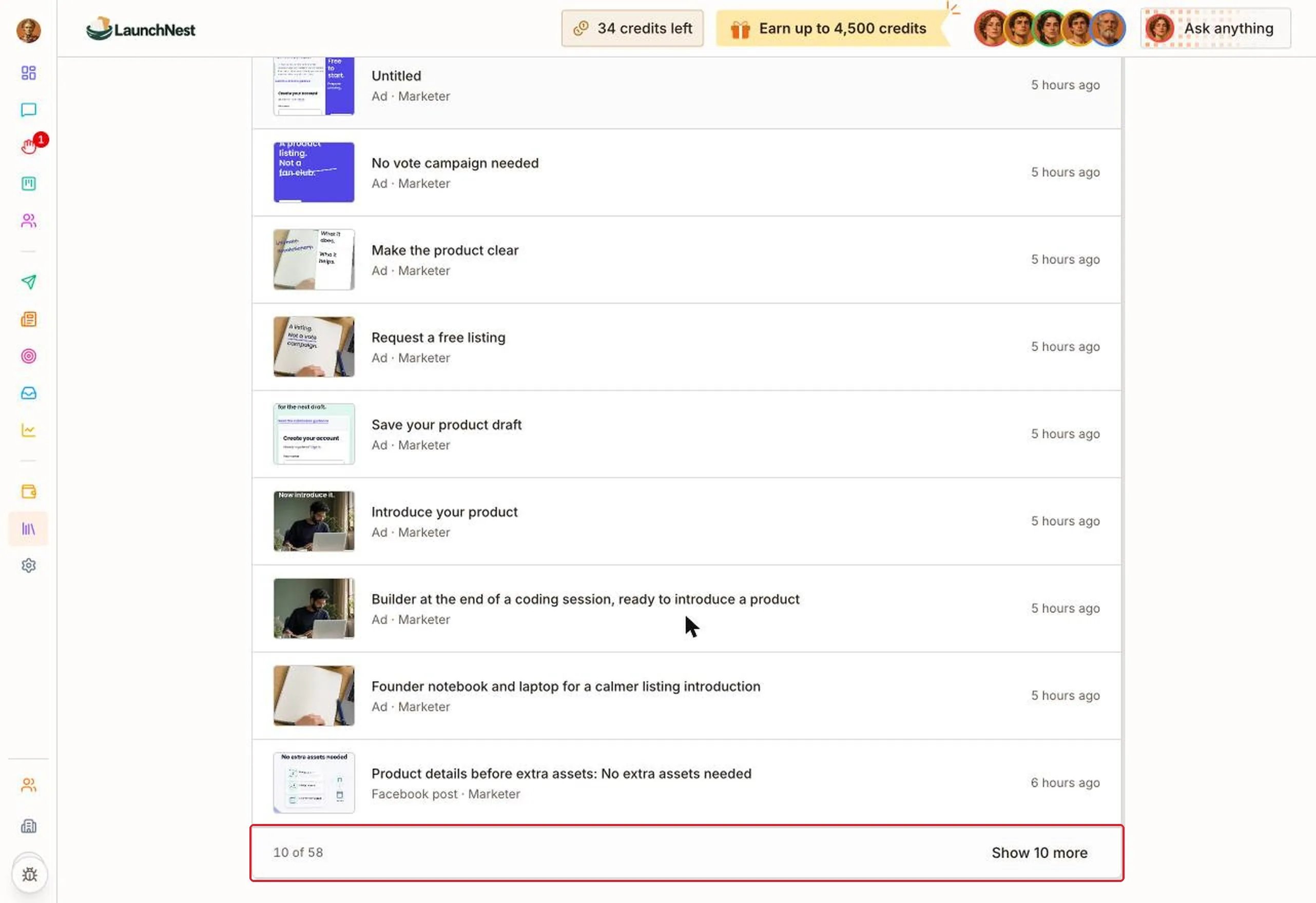
- Fix documents, not single posts. If a post says something wrong about your company, the cause is usually in “Company” or “Brand”. Ask the CEO to fix the document, and every post after that follows it.
- Check the time on each document. A document that changed recently is one your team is actively working on. It’s a quick way to see what they’re focused on.
- Look through “Pictures & videos” now and then. It’s the fastest way to see everything your company has put out, all in one list.
FAQ
Do I need to save or organize anything here?
Do I need to save or organize anything here?
No. Documents, files you send and pictures your team makes all appear on their own.
Can I edit or delete a document here?
Can I edit or delete a document here?
No. Documents are read-only on this page. Tell the CEO what to change and it updates the document for you.
How do I add a file?
How do I add a file?
Send it in a chat, for example with the paperclip in the CEO chat. It appears under Uploads by itself.
I sent a file a while ago. Do I need to send it again?
I sent a file a while ago. Do I need to send it again?
No. It’s still under Uploads. Tell the CEO which file you mean and what to do with it.
Can I reuse a picture my team made?
Can I reuse a picture my team made?
Yes. Open it in Pictures & videos and click Download.
Why do some pictures say “Untitled”?
Why do some pictures say “Untitled”?
The team didn’t give that picture a name. The row still shows what it was made for, who made it, and when.