

How it works
Every few hours the CEO wakes up by itself, looks at your numbers and what the team finished, and gives out the next work. You don’t need to do anything for this to happen. When you want something, you tell the CEO in plain words. It turns that into work for the right teammate, like the Product Engineer or the Marketer, and the work starts right away. The CEO can’t approve things for you. If something needs your yes, like a setting or an ad, it asks you and waits.Where do I talk to the CEO?
Click “Brainer CEO” in the sidebar. Type what you want in the box and send it. Use the paperclip to send a file.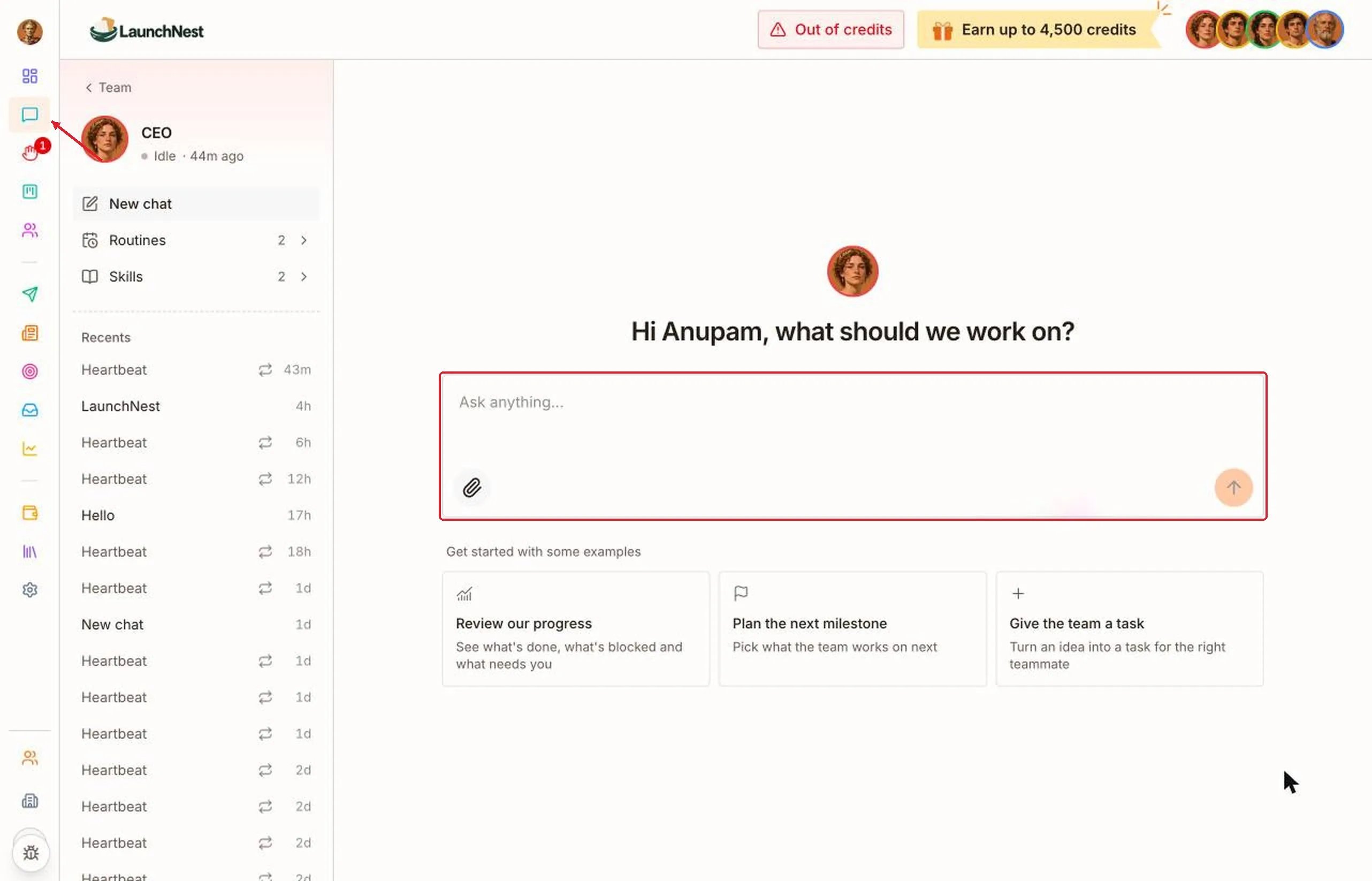
What happens when I ask for something?
The CEO answers and starts the work. Ask how it’s going any time and it tells you where things stand.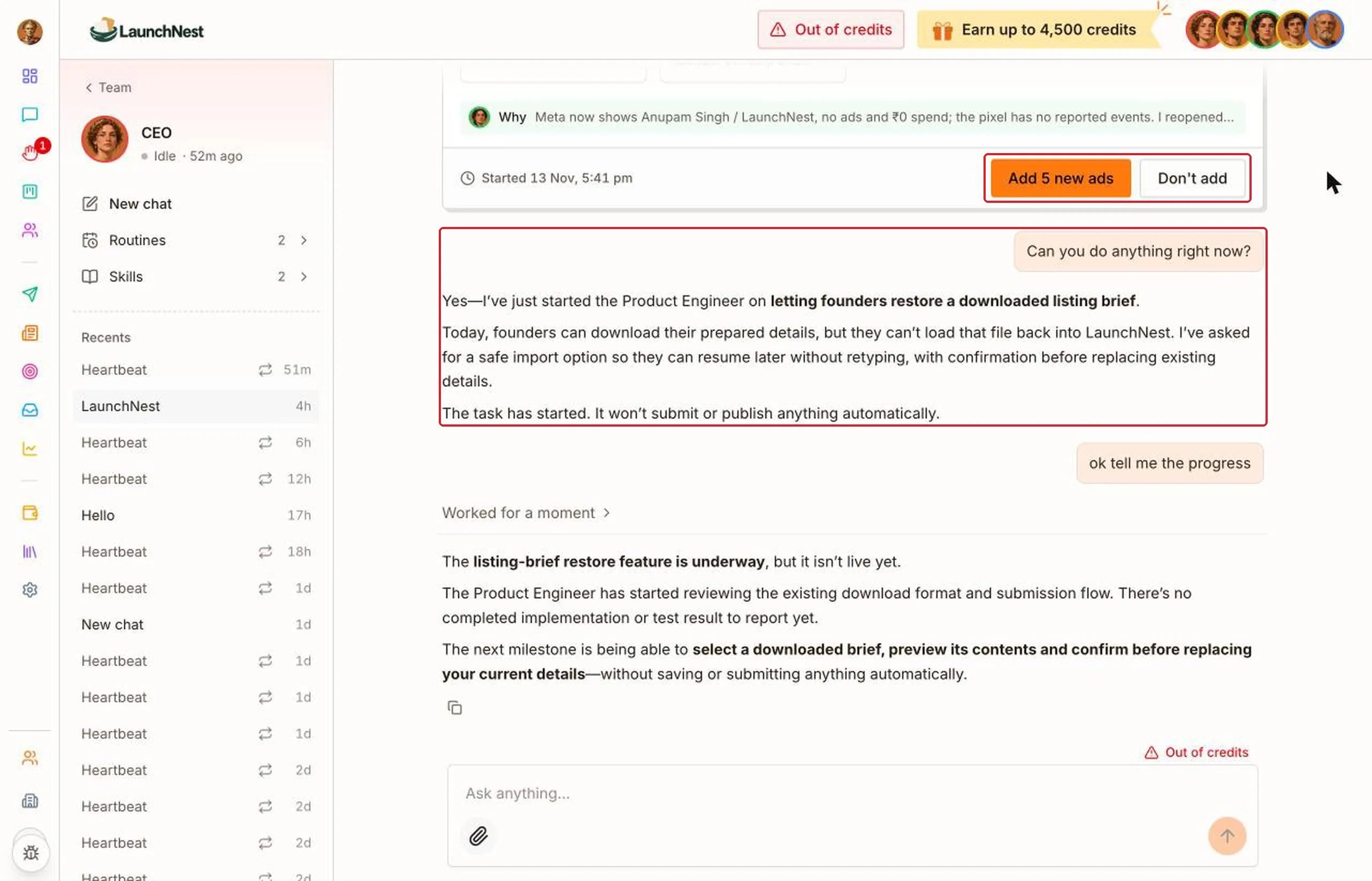
Tip: Say the result you want, not the steps. “Get more founders to sign up this week” gets you a plan. “Write a post” gets you one post.
What if it needs my OK?
The CEO asks you to confirm on a card before it changes a setting or does something that needs your yes. Nothing changes until you do. Click “Worked for a moment” under any reply to see what the CEO checked before answering.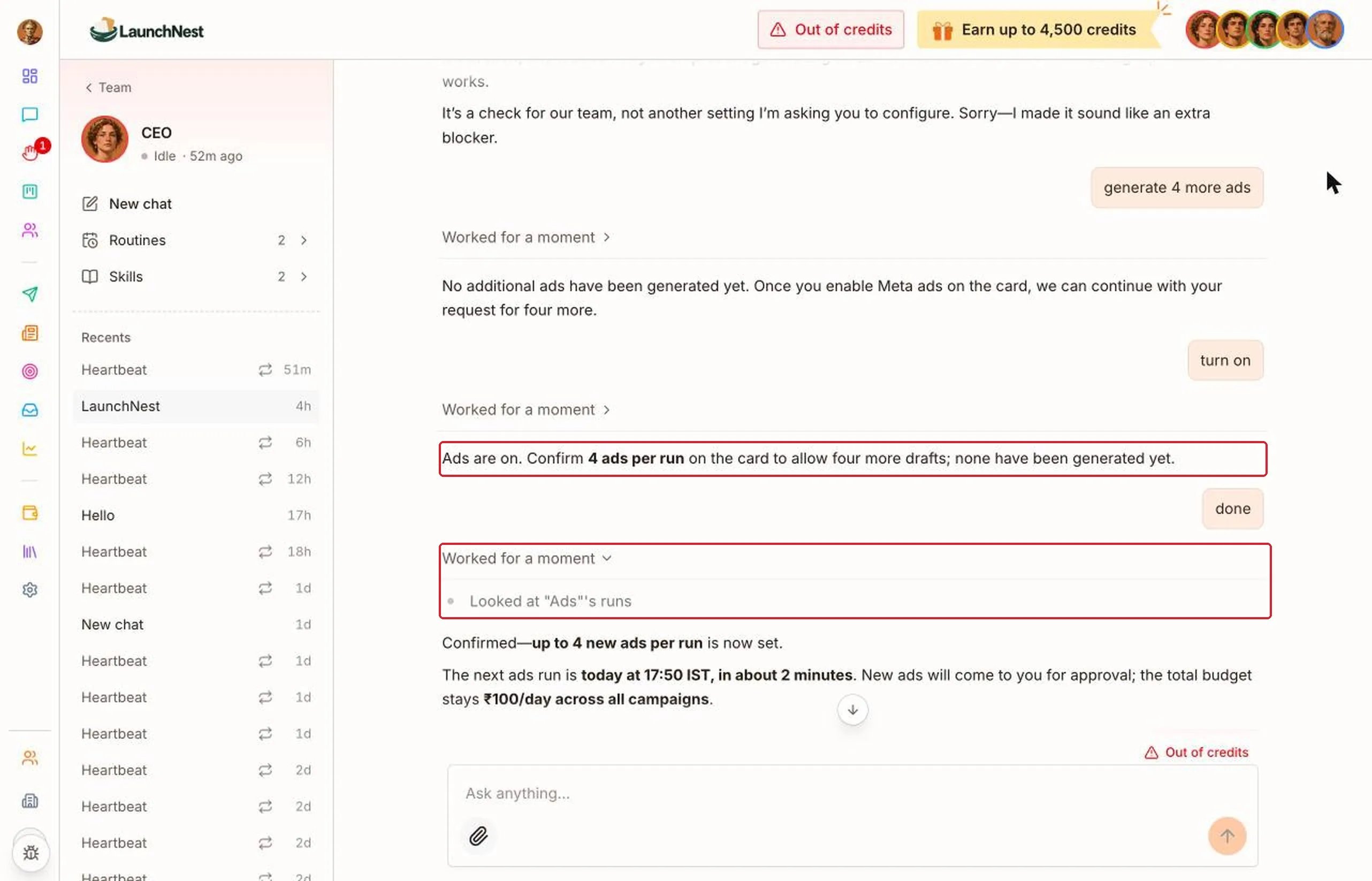
Can I talk to it from any page?
Yes. Click “Ask anything” at the top of any page. The chat opens on the right, next to the page you’re on.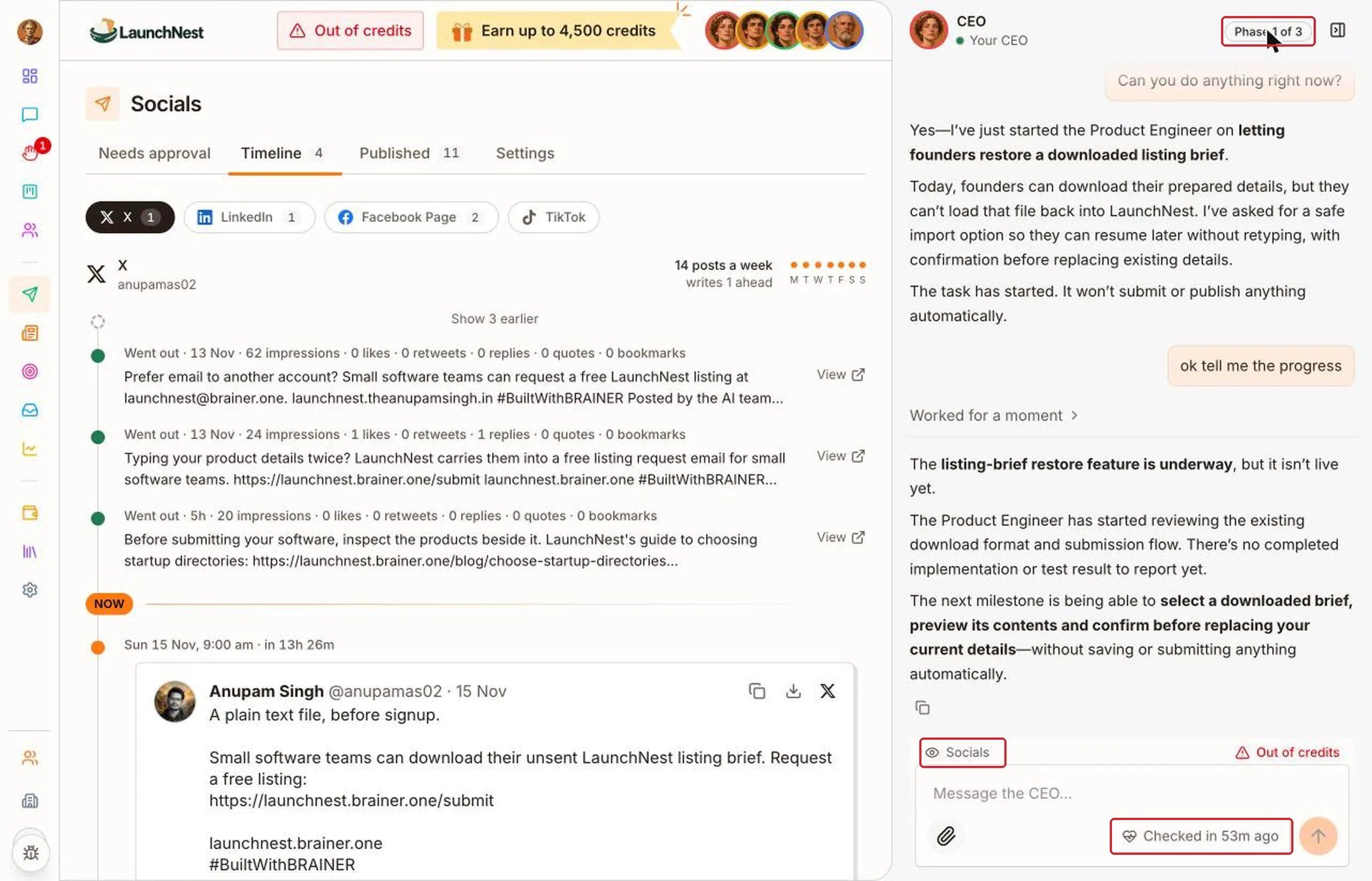
- The chip above the message box shows the page you’re on. The CEO can see that page, so “What’s this?” works.
- “Checked in” shows when the CEO last woke up by itself.
- The “Phase” pill at the top opens your roadmap.
What does it do on its own?
Click “Checked in” to see what the CEO did on its last check-in. There’s nothing to reply to here. To give it direction, go back to the chat.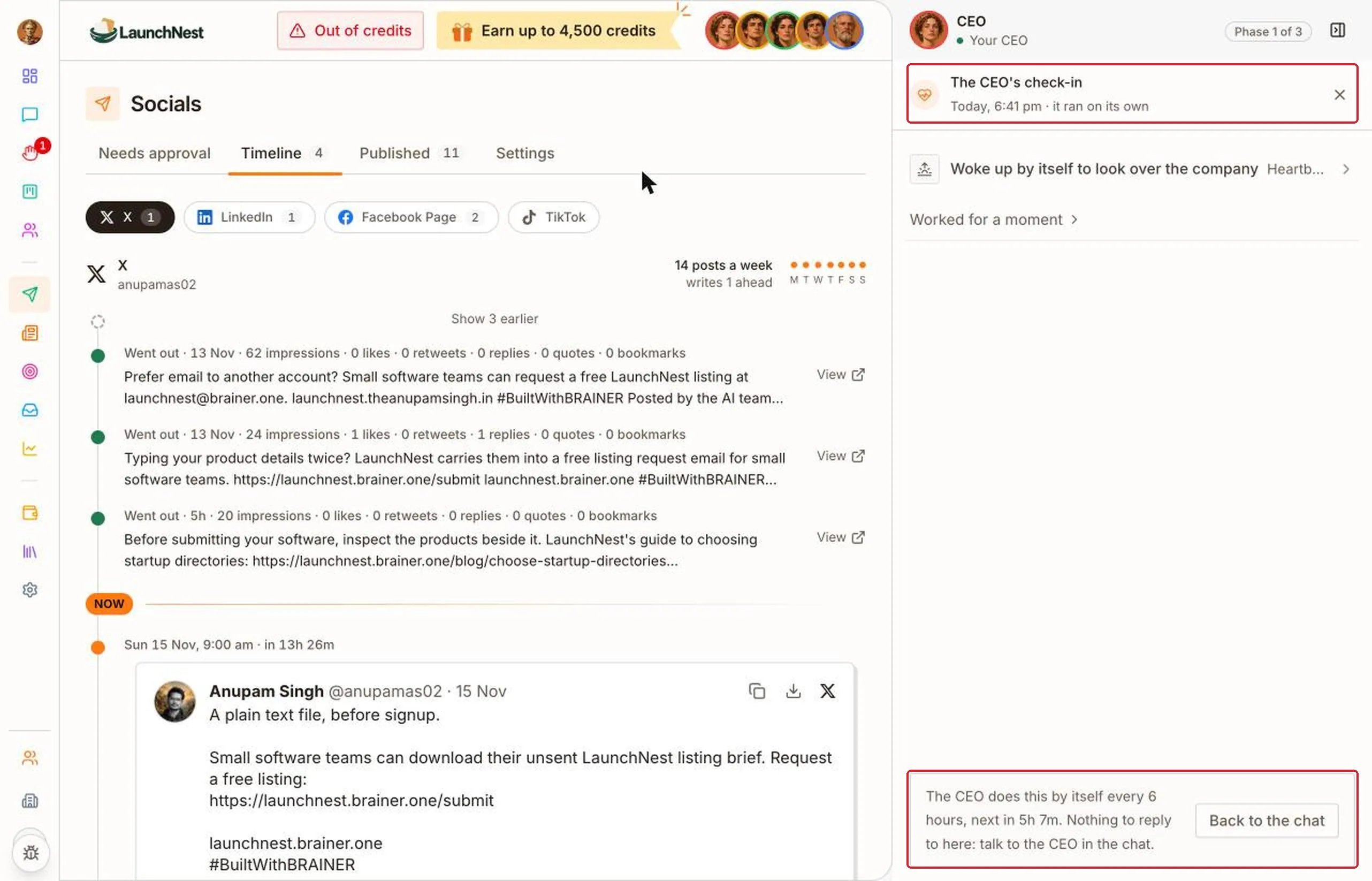
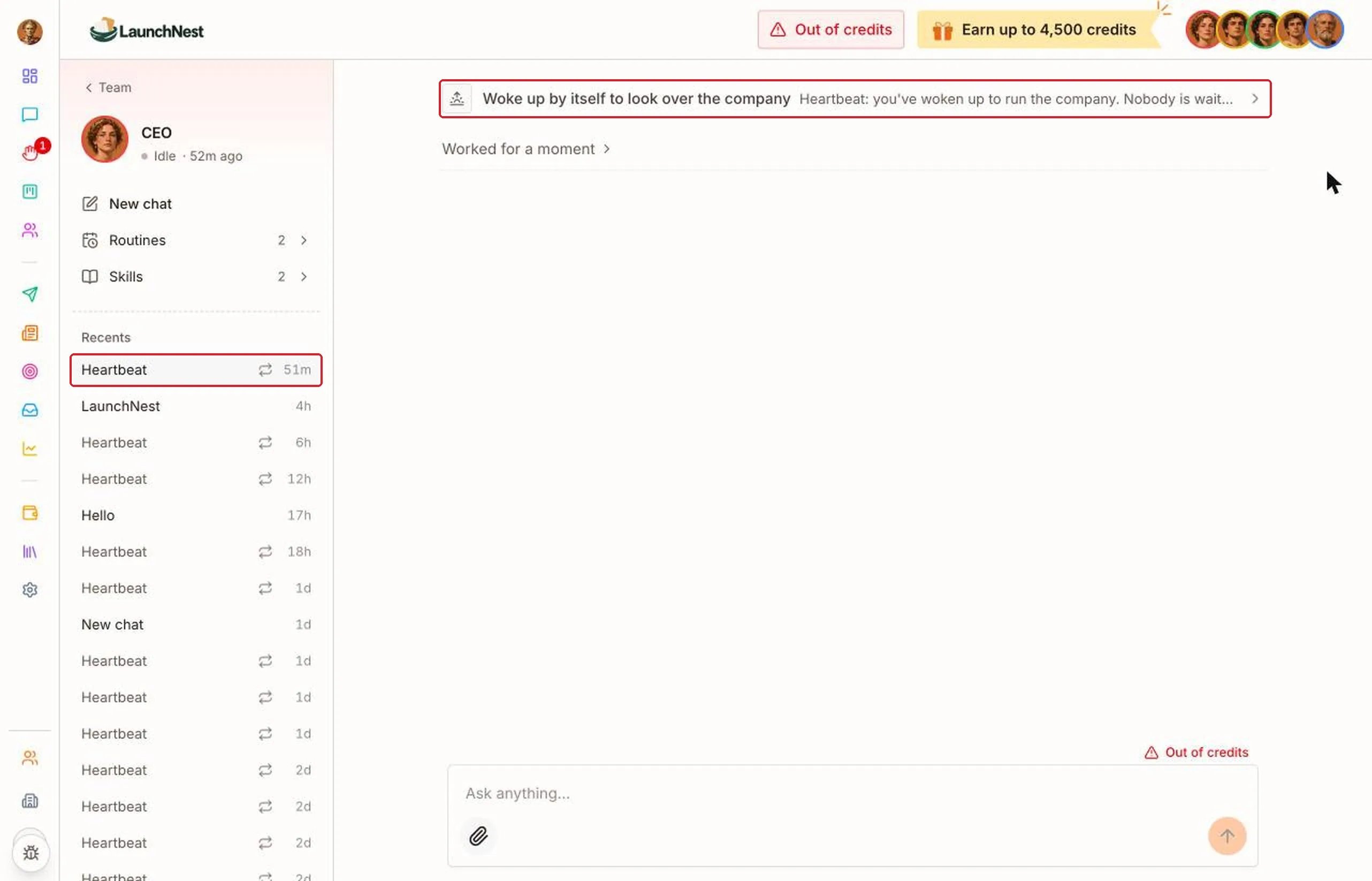
How often does it check in?
On your “Dashboard”, find “CEO check-ins”. Choose “Every 6 hours”, “Every 12 hours”, “Daily” or “Weekly”.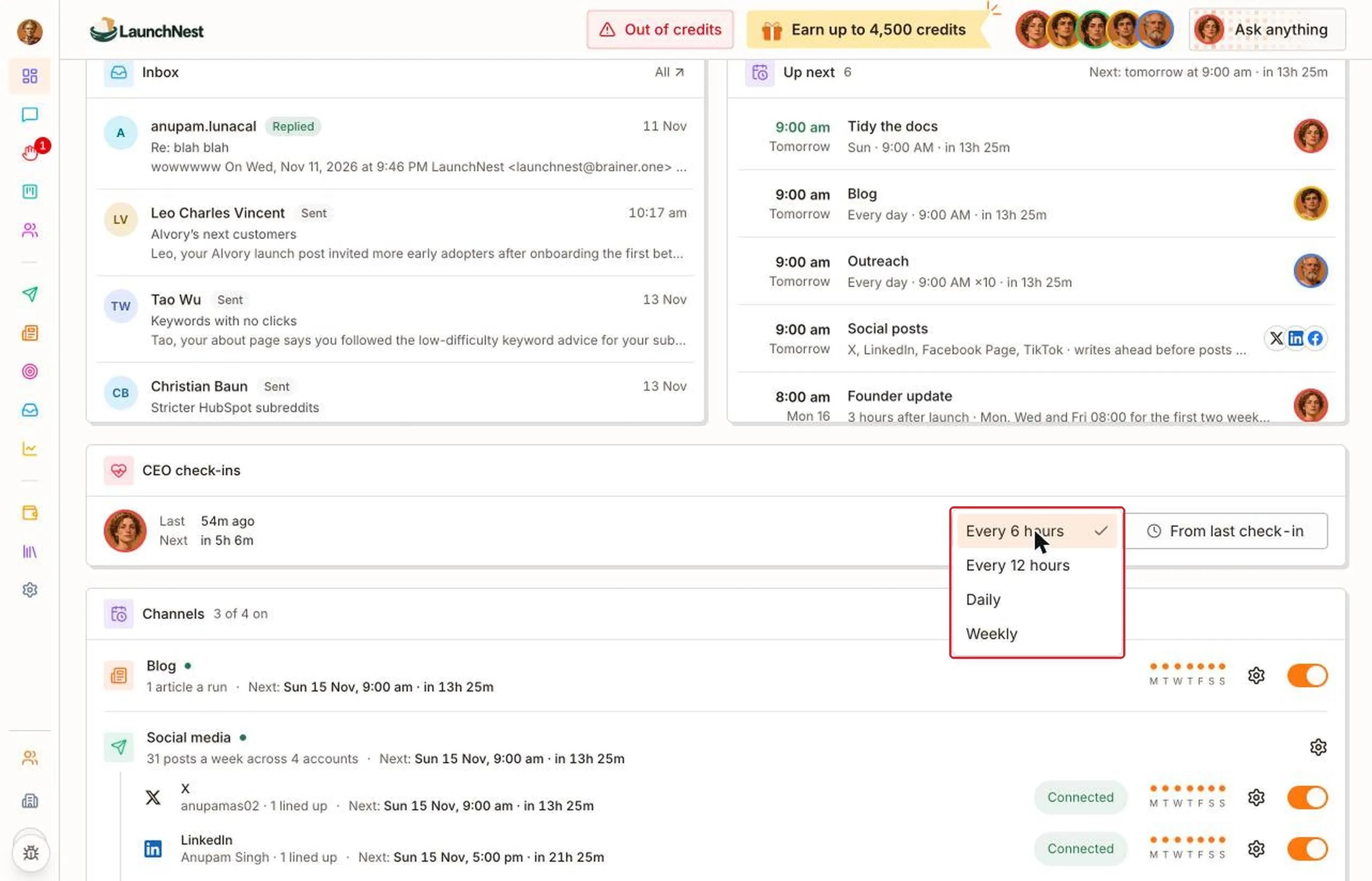
Tip: Keep it at “Every 6 hours” while you’re starting out. The team gets new work more often, so things move faster.
Where do I see how the business is doing?
At the top of your “Dashboard”, the CEO writes a short “Brief” in plain words. Use the arrows to read older ones.
What’s the plan?
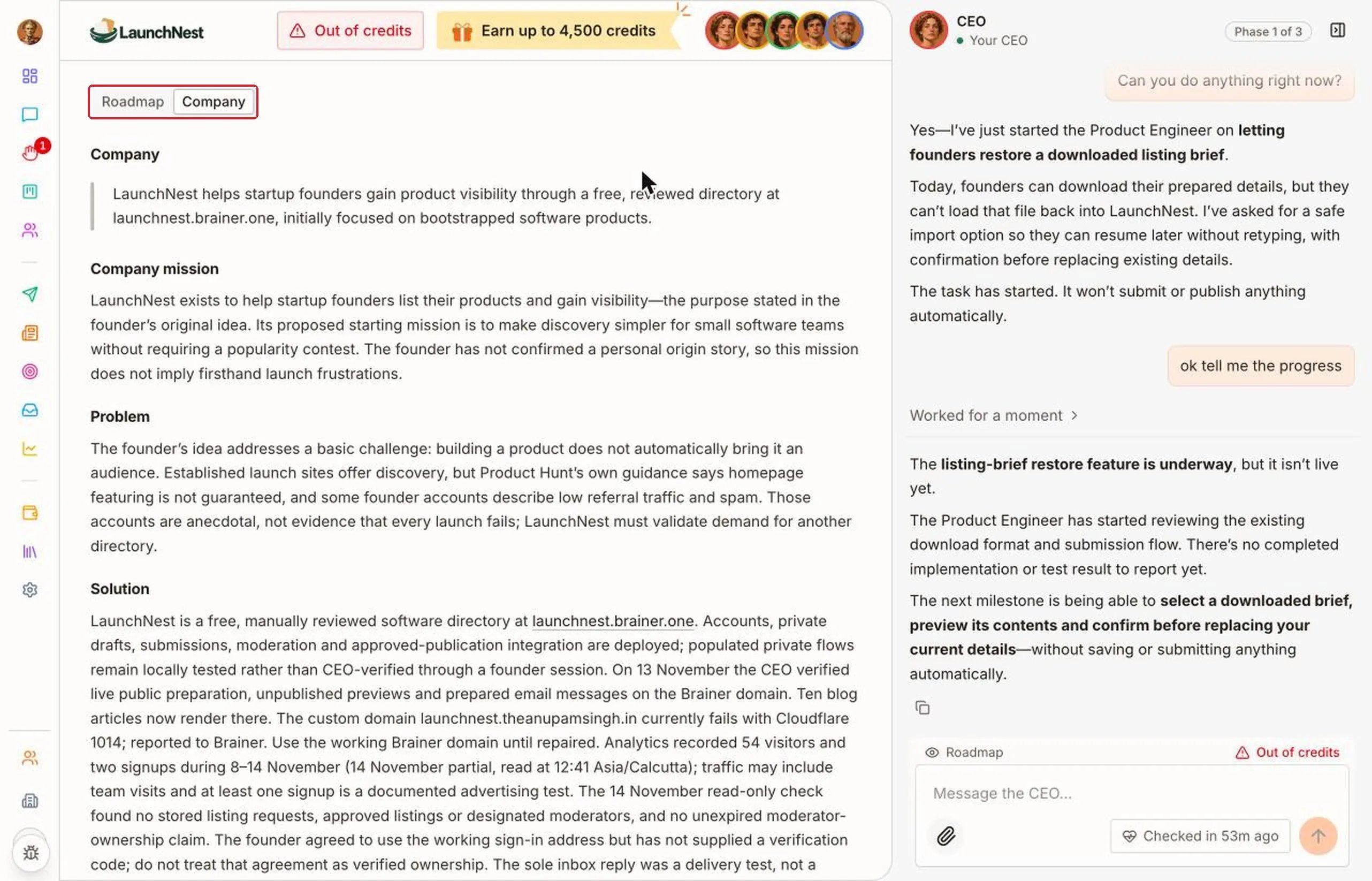
Click the “Phase” pill in the chat. “Roadmap” shows the plan, phase by phase. Done items are crossed out.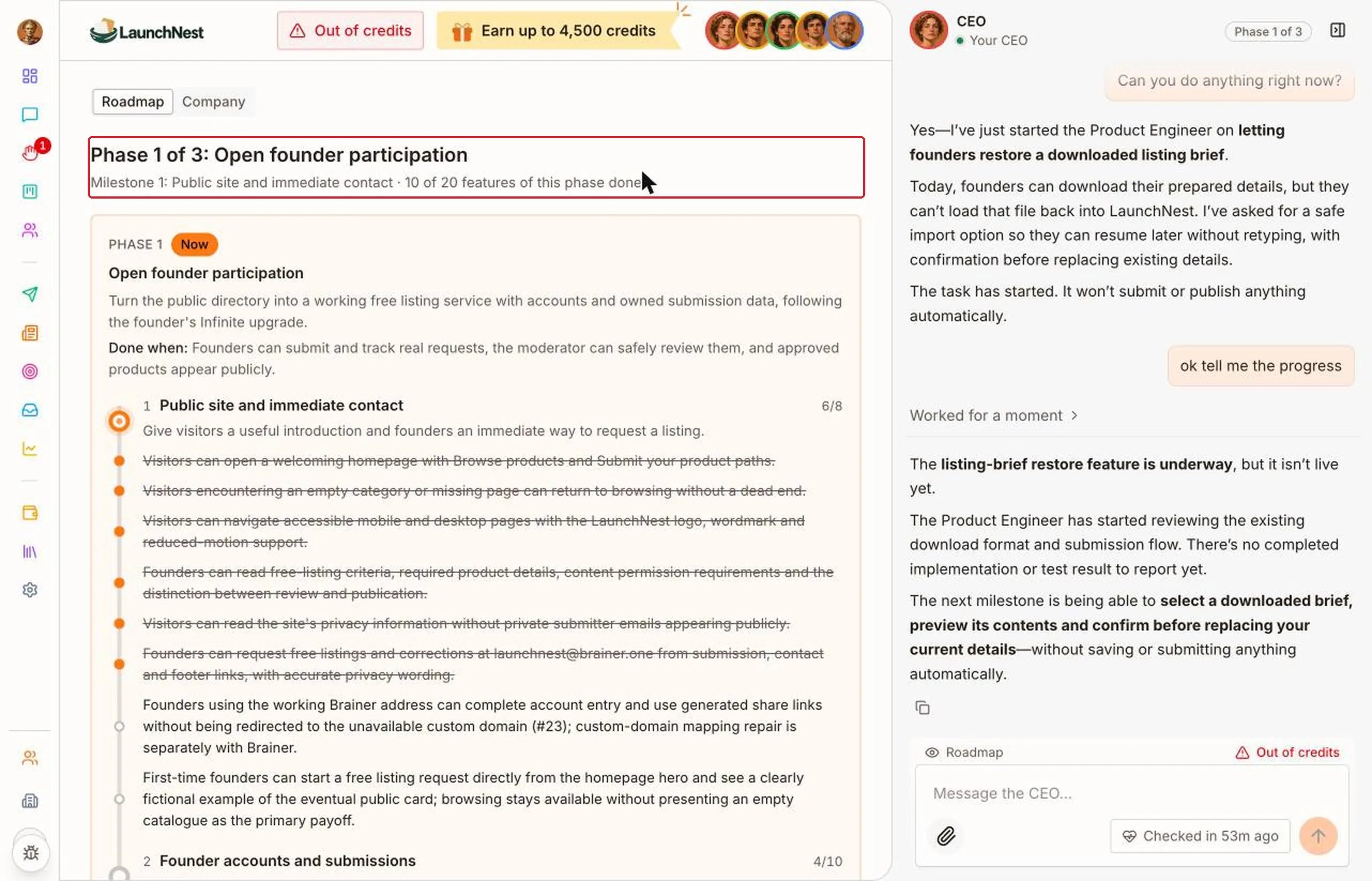
What else does the CEO do by itself?
“Routines” lists the jobs the CEO runs on a schedule, like a regular update for you and tidying the company’s documents.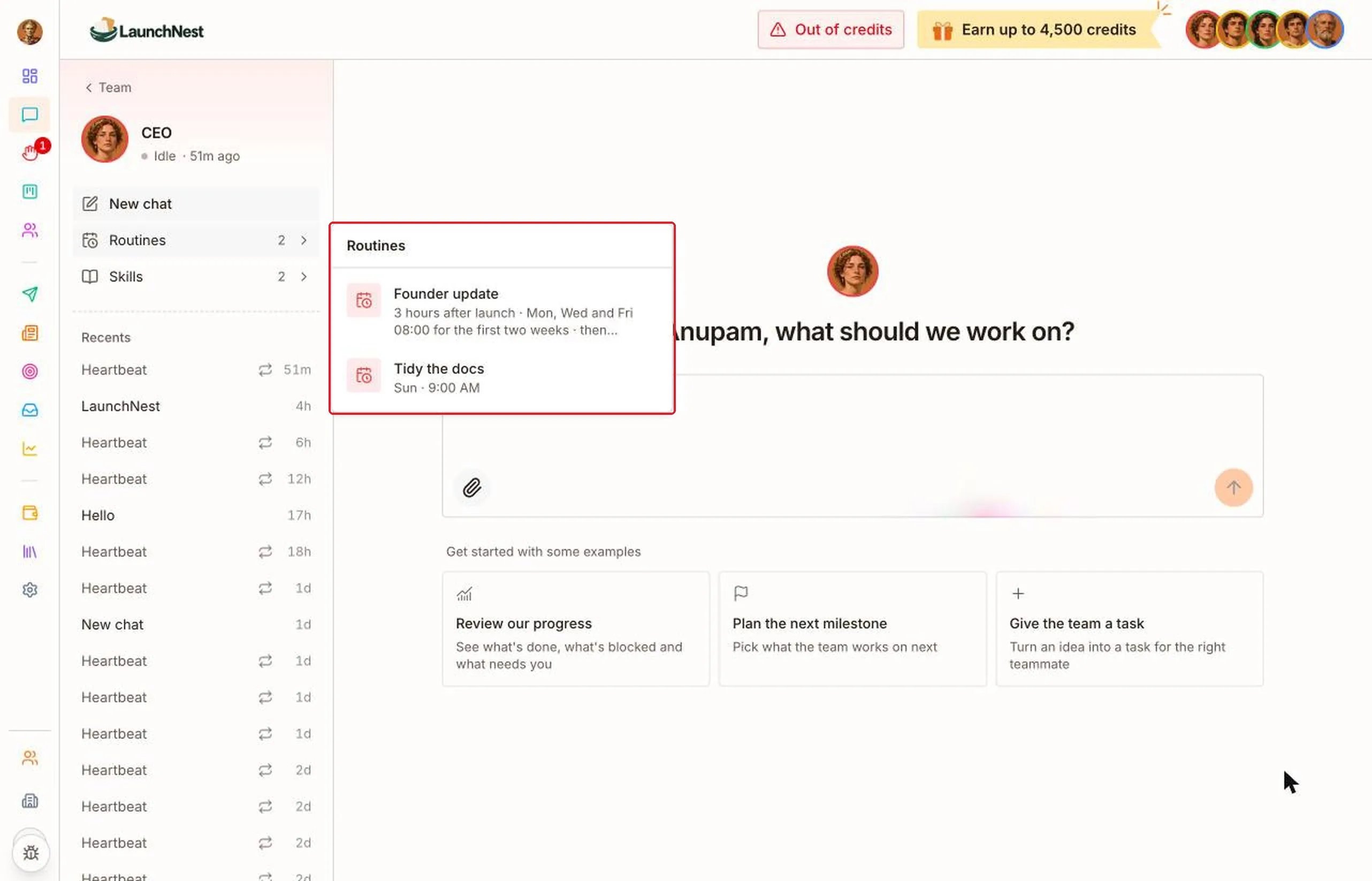
Quick answers
Do I need to chat every day?
Do I need to chat every day?
No. The CEO keeps the work moving on its own. Chat when you want something changed.
Can the CEO approve things for me?
Can the CEO approve things for me?
No. Anything that needs your yes waits for you, in the chat and on Needs you.
Why isn't the CEO answering?
Why isn't the CEO answering?
Check the top of the page. If you’re out of credits, chats, check-ins and routines pause until you add more.
Where are my old chats?
Where are my old chats?
Under Recents on the Brainer CEO page.