

How it works
Each time outreach runs, the Outreach agent looks for people who fit the audience you’ve set. It reads about each one, skips anyone who isn’t a good fit, and writes a short personal email to the rest. Emails go out on their own, at the times you set. When someone replies, you see it under “Received” and can answer right there. You can change who it writes to and how often in “Settings”, or just tell the CEO what you want.Where do I find my emails?
Click “Inbox” in the sidebar. There are four tabs: “Received”, “Sent”, “Contacts” and “Settings”.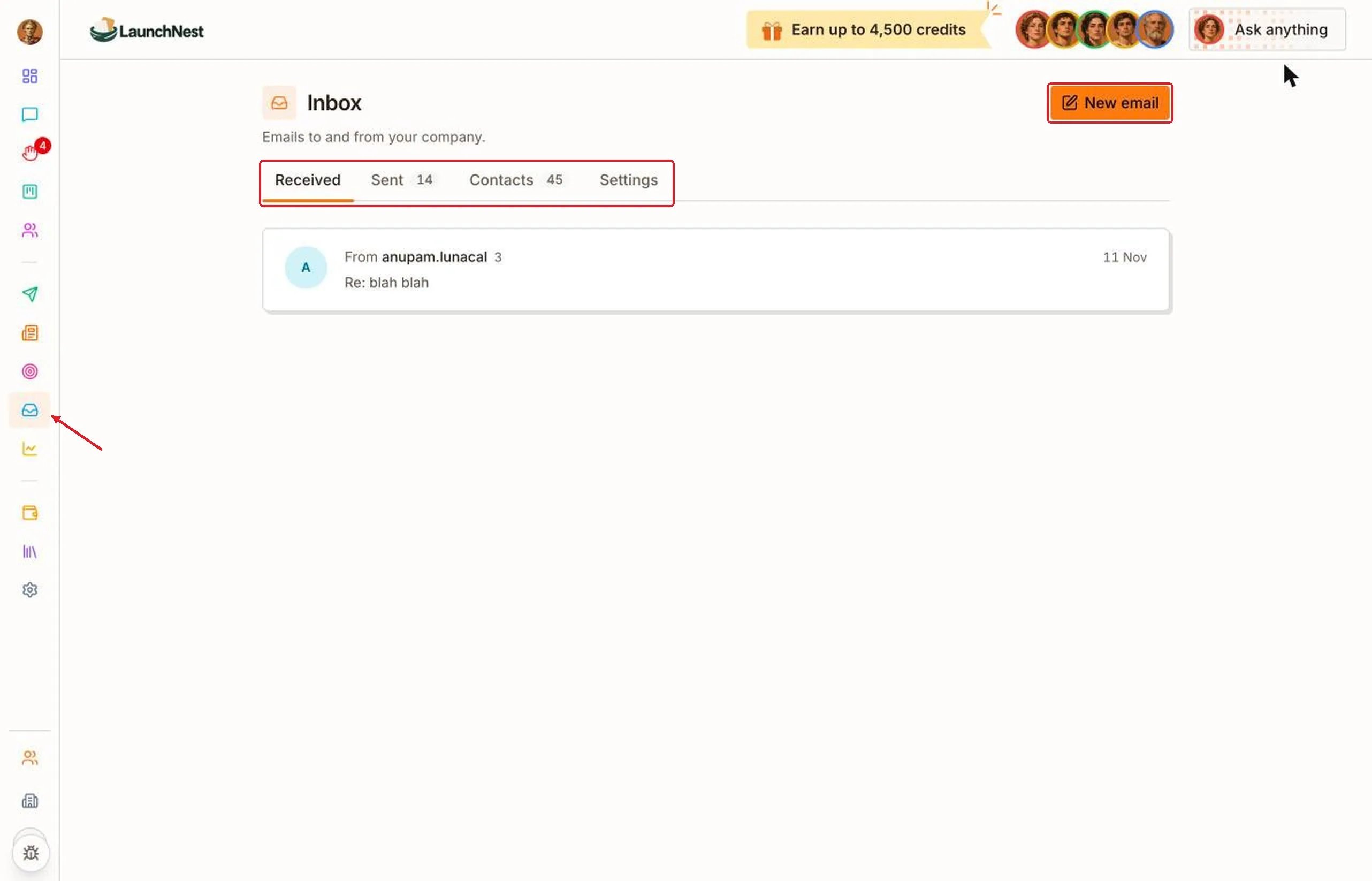
How do I answer a reply?
Open the thread. You see the whole conversation, and on the right, who the person is and when they were found, first emailed and replied. Type your answer in the box at the bottom and click “Send”. It goes out straight away, from the address they wrote to, in the same thread.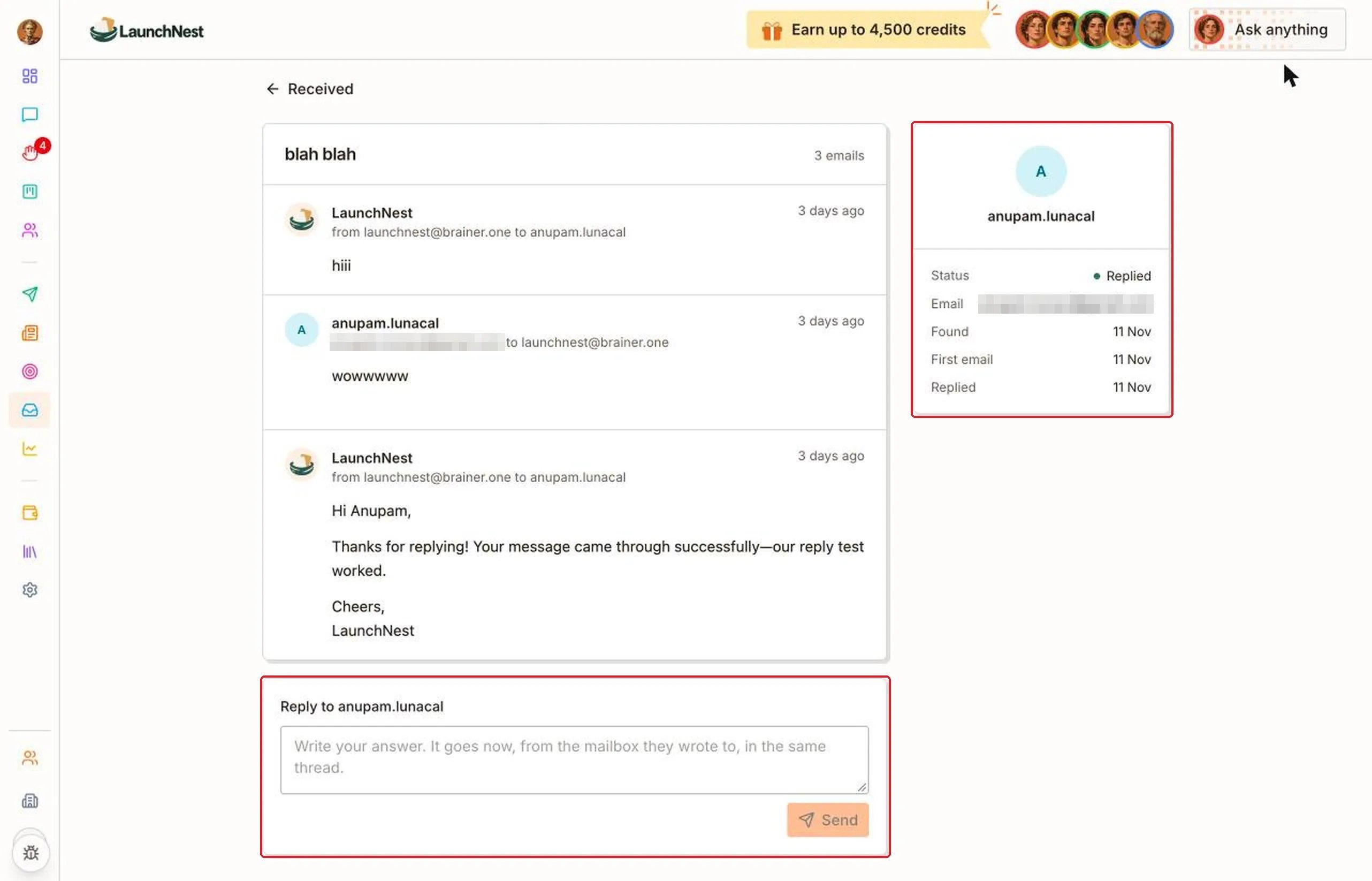
Tip: Answer replies the same day if you can. Someone who wrote back is the most likely person to become a customer.
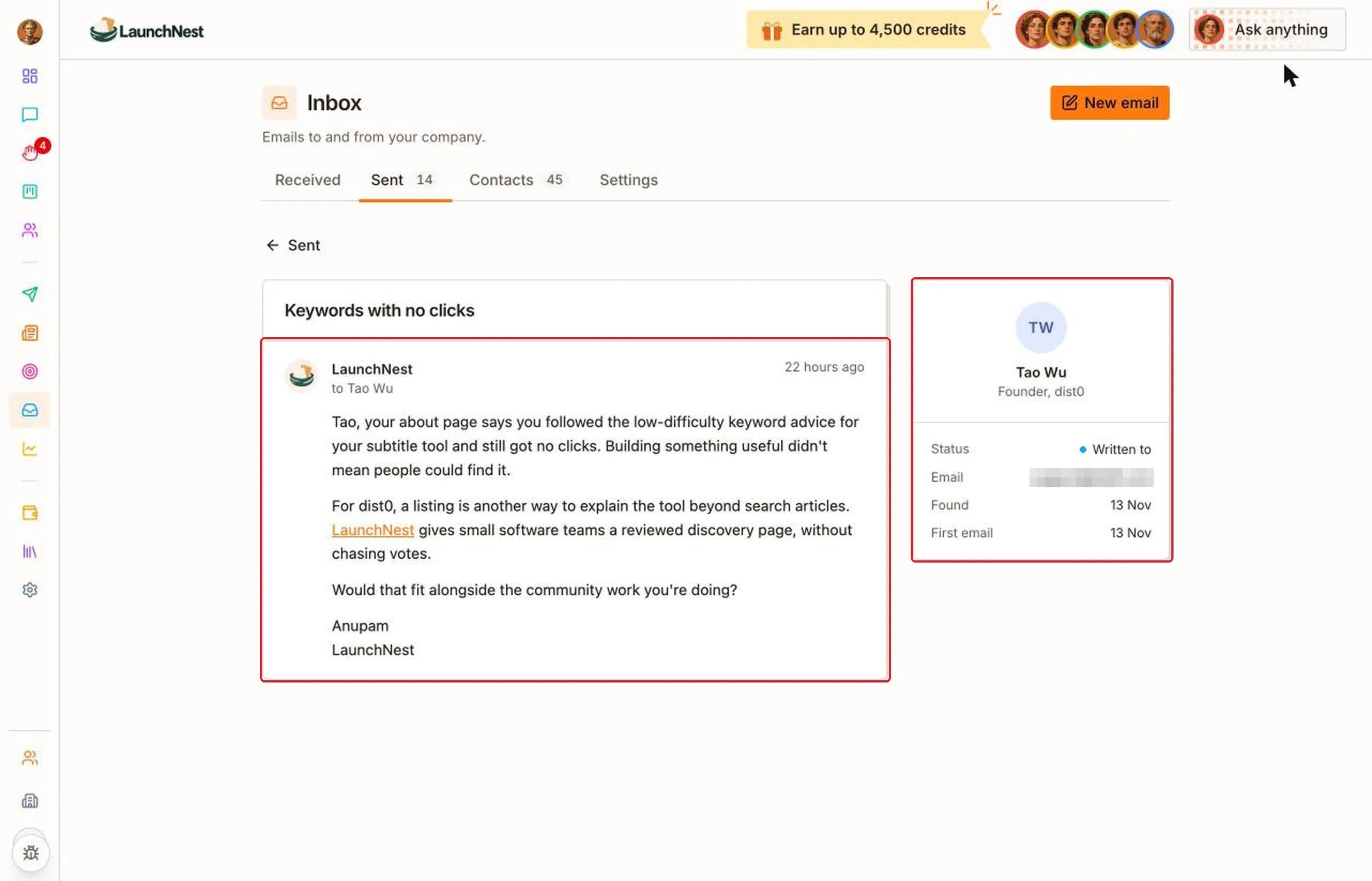
What has been sent?
Open “Sent”. At the top you’ll see how many people were written to, how many replied, the reply rate, and how many emails bounced.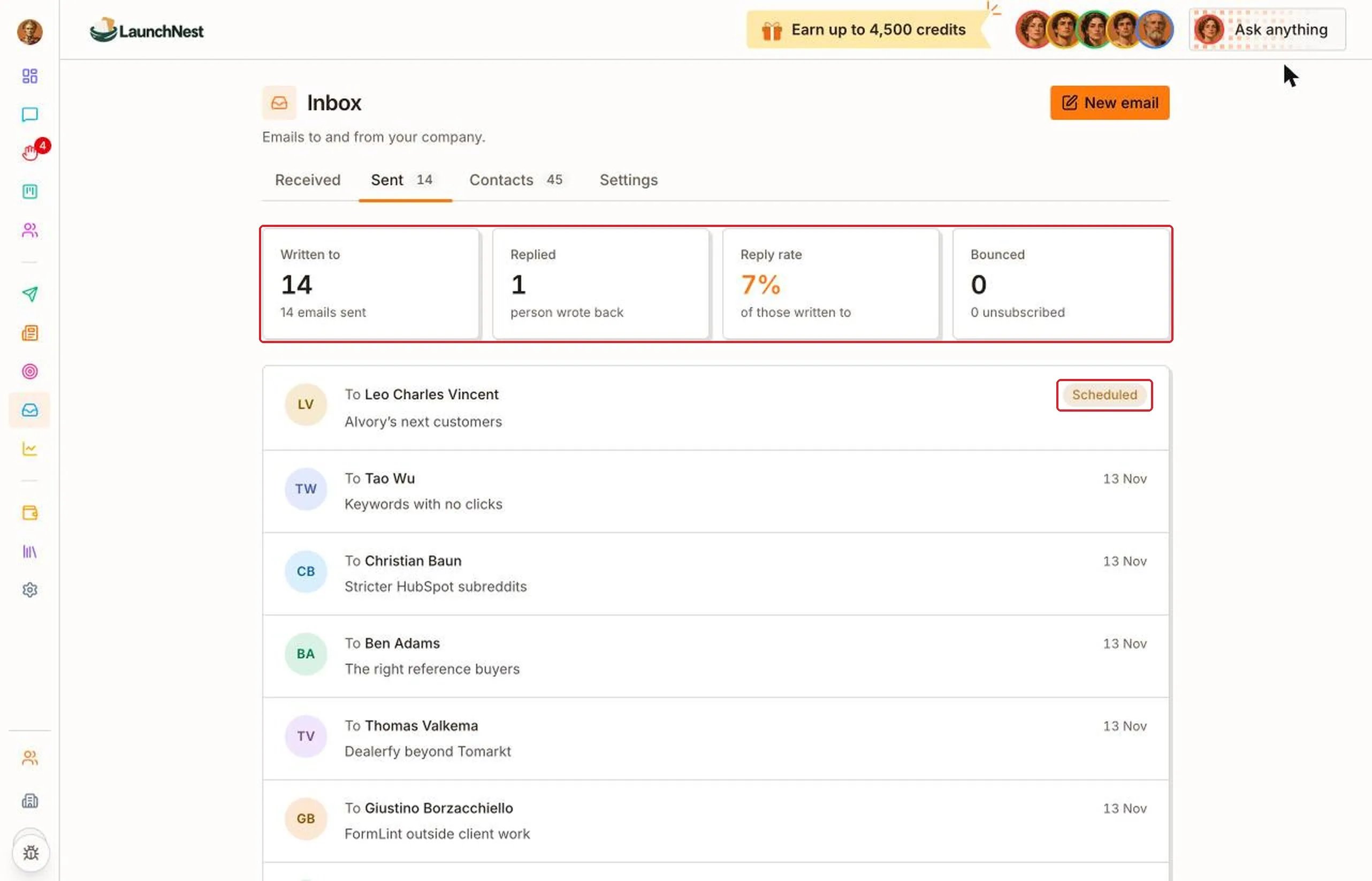
Who has it found?
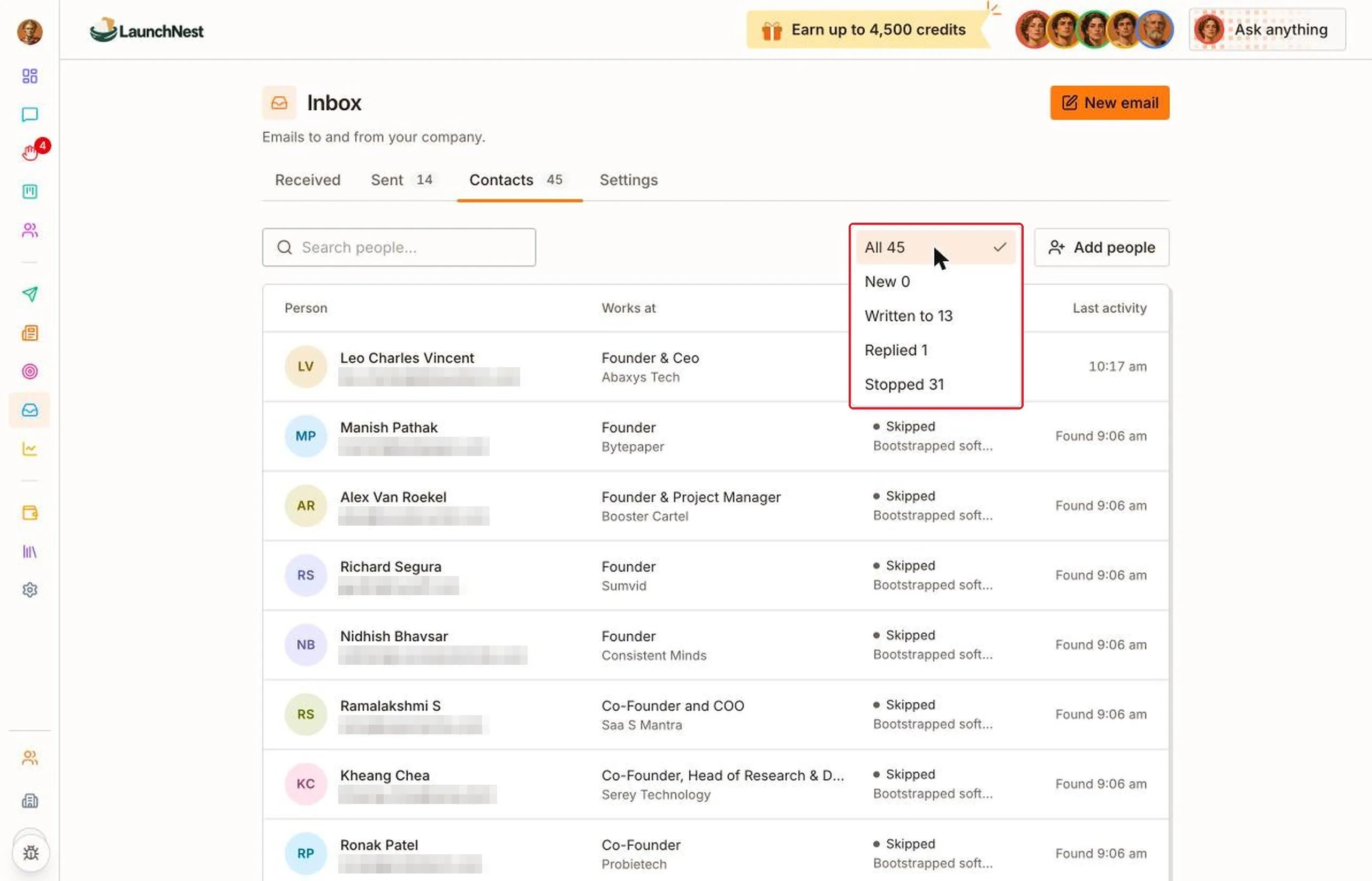
Open “Contacts”. It lists everyone the agent found, where they work, their status, and when they were last contacted.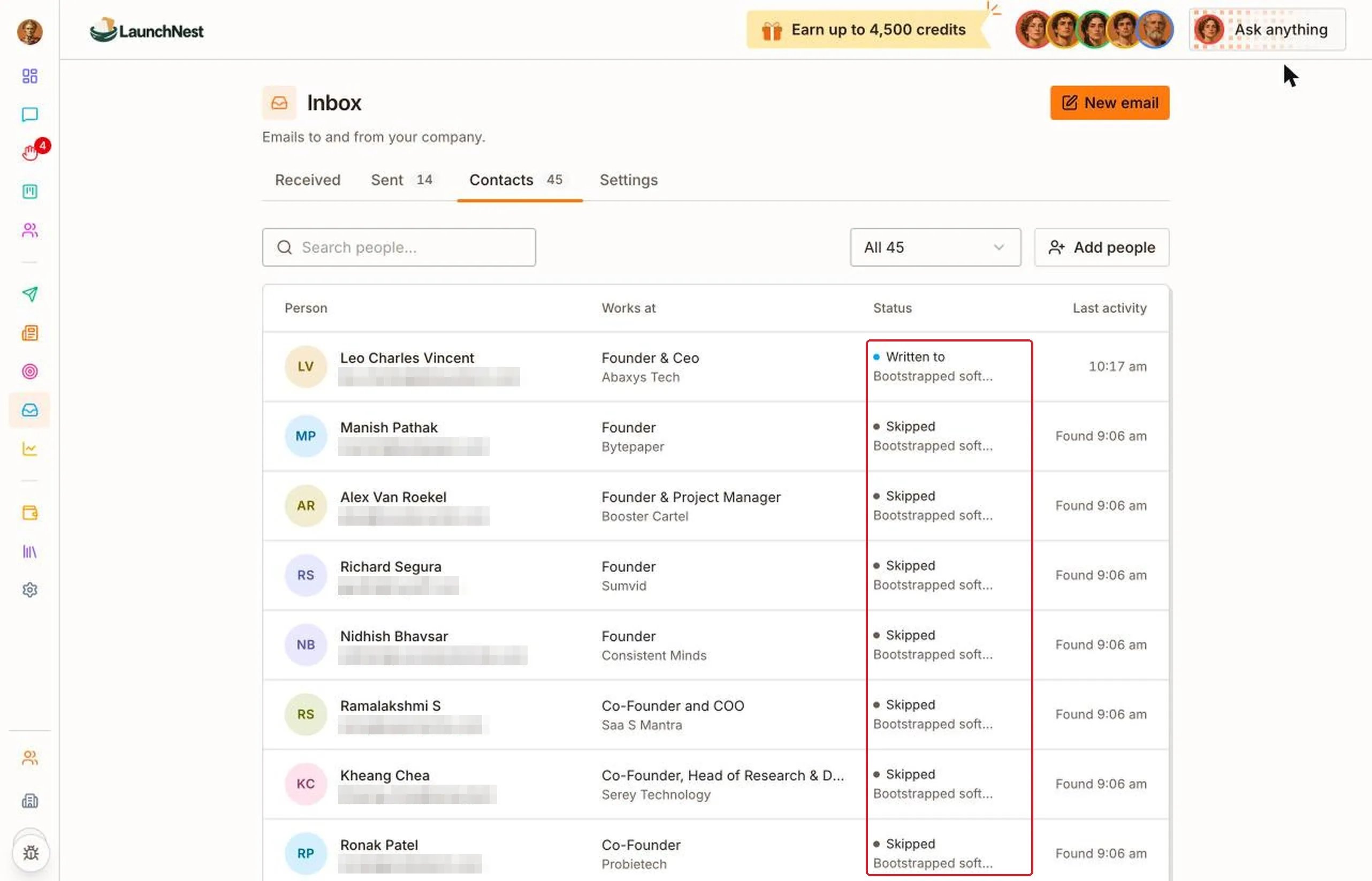
Can I add my own contacts?
Yes. Click “Add people”. Put one person per line: their email, then their name, title and company if you have them. You can add up to 200 at once.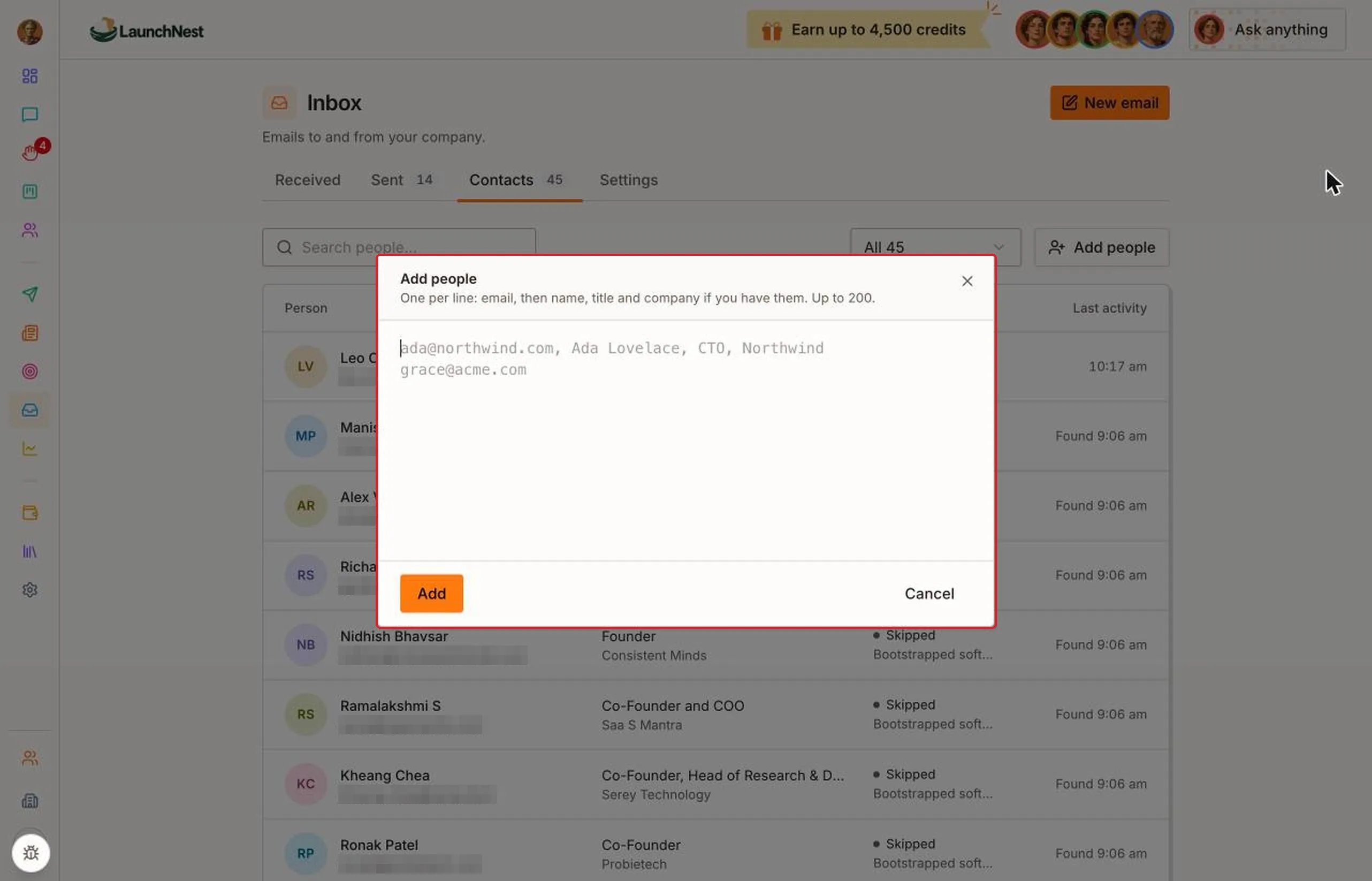
Can I write an email myself?
Yes. Click “New email”. It’s sent from your company’s address. Fill in “To”, “Subject” and your message, then click “Send”.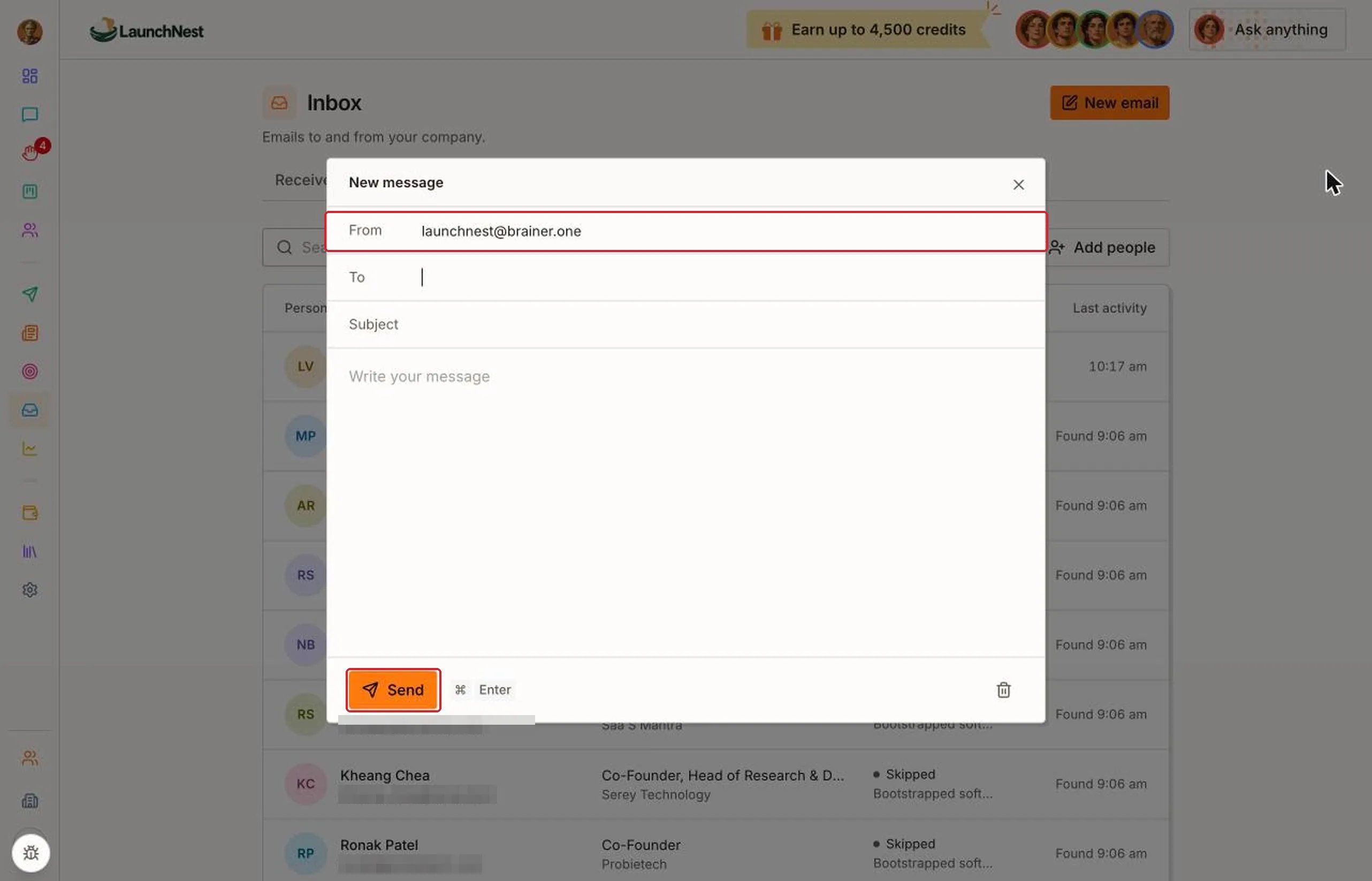
How do I control outreach?
Open “Settings”.- “Enable outreach” turns outreach on or off.
- “Review emails before sending” makes each run’s emails wait for your OK, so you can read and edit them first.
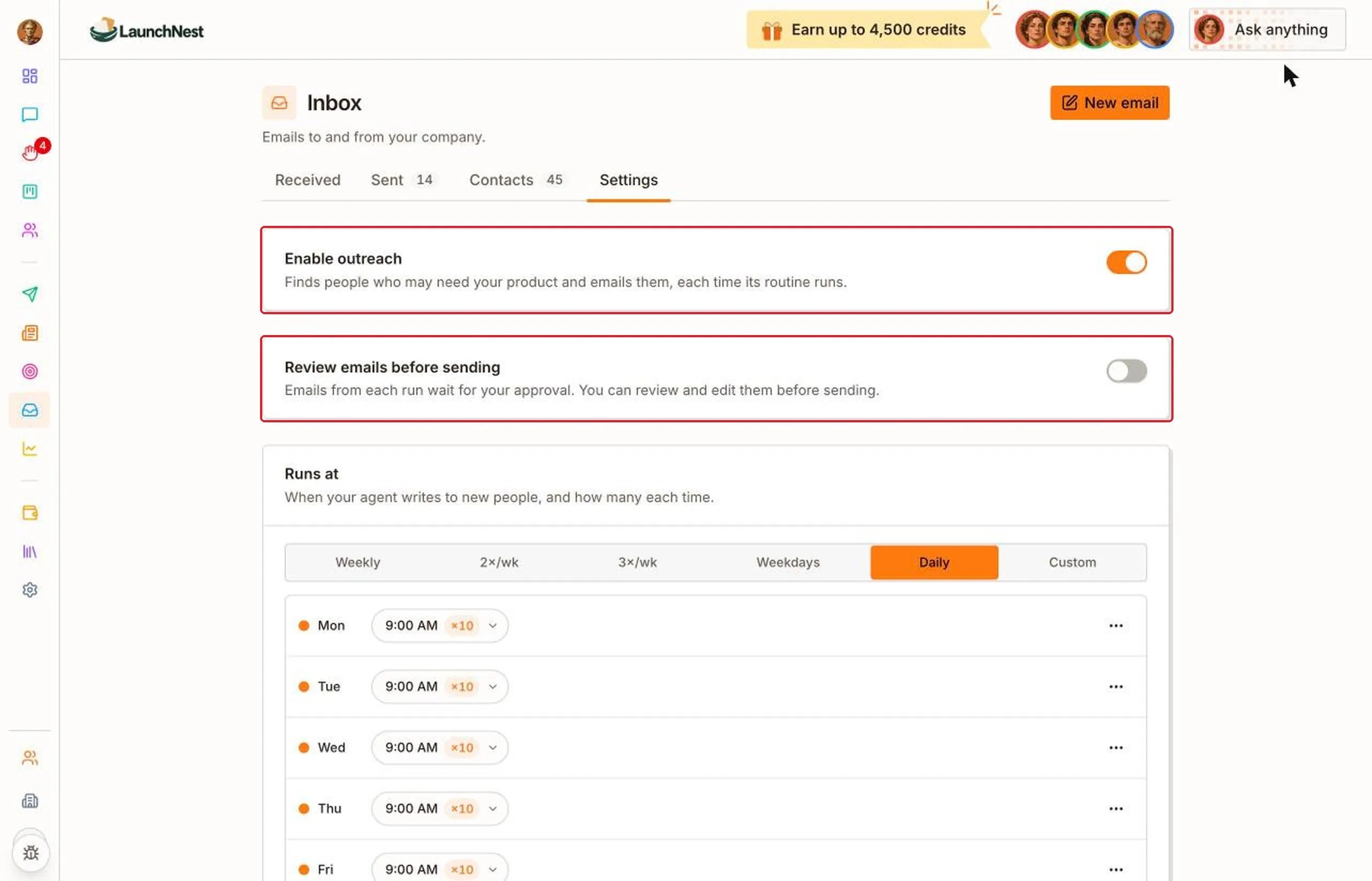
Tip: Turn on “Review emails before sending” for your first week. Once the emails sound right to you, turn it off and let outreach run on its own.
Who does it write to, and how many?
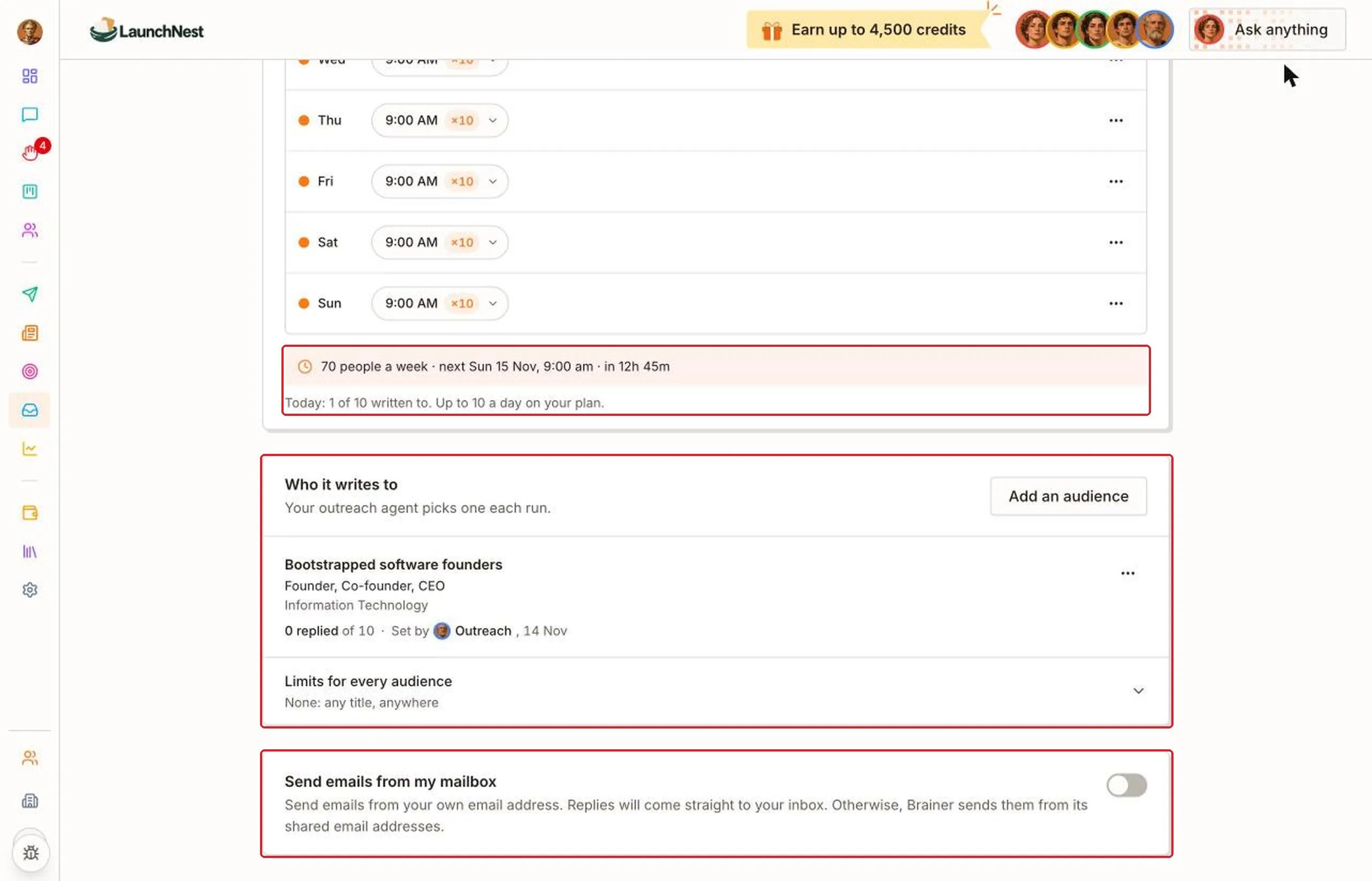
Further down “Settings”:- “Runs at”: when the agent writes to new people, and how many each time. Below it you’ll see the total per week and how many have been written to today.
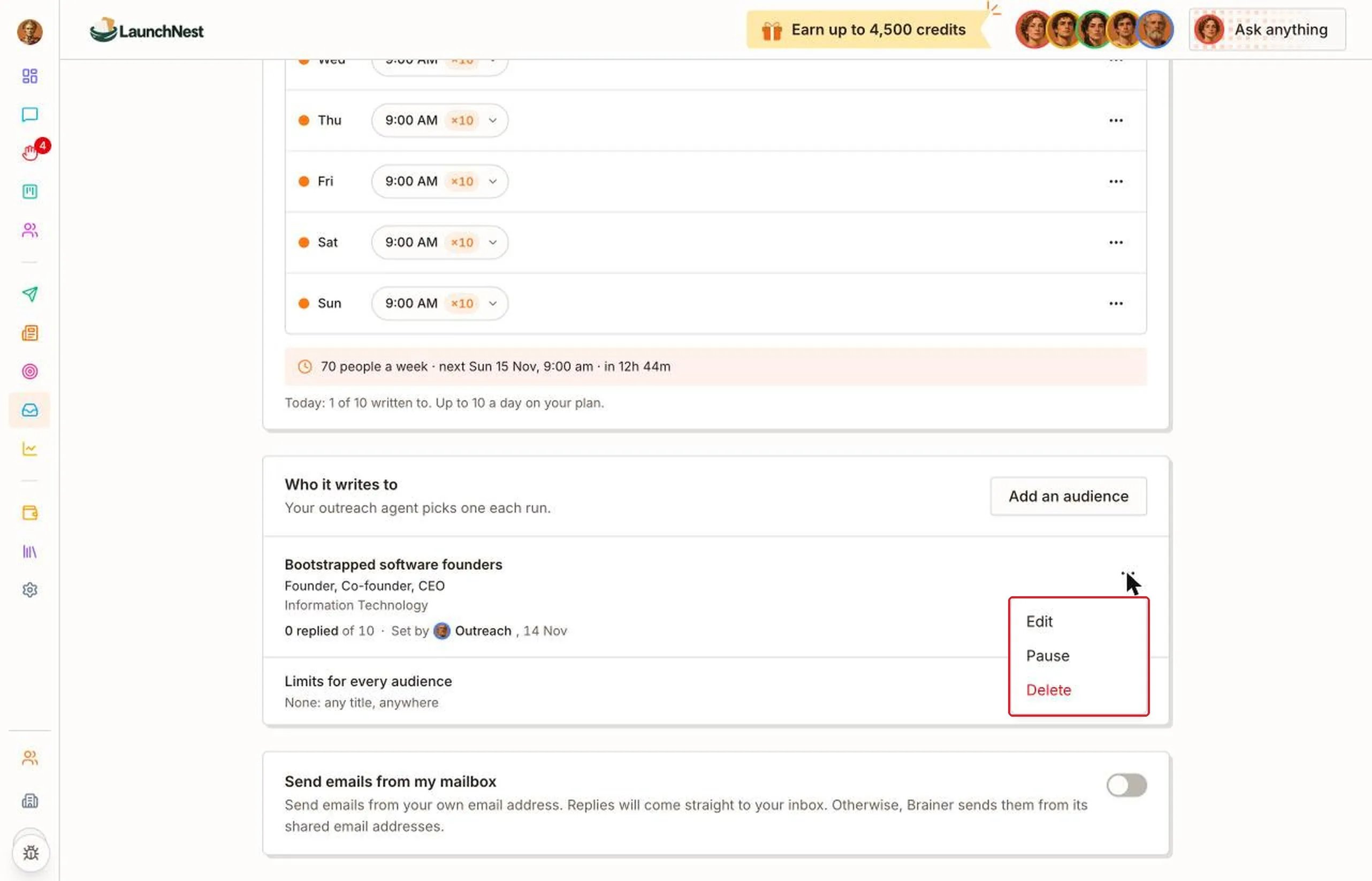
- “Who it writes to”: your audiences, each with job titles and an industry, and how many replied. Click “Add an audience” to add one.
- “Send emails from my mailbox”: send from your own email address so replies come straight to you. If it’s off, Brainer sends from its own shared addresses.
Quick answers
Do I need to write the outreach emails?
Do I need to write the outreach emails?
No. The Outreach agent writes and sends them. Turn on Review emails before sending if you want to check them first.
Who set up my audience?
Who set up my audience?
The card shows it, like Set by Outreach. The agent can set one up for you, and you can edit it any time.
Is there a daily limit?
Is there a daily limit?
Yes. Settings shows how many people can be written to each day on your plan.
Can I tell it to write to different people?
Can I tell it to write to different people?
Yes. Edit or add an audience in Settings, or tell the CEO, like “Focus outreach on agency owners.” See Brainer CEO.